
Stop Retyping Screenshots: Extract Text Privately With Chrome's Built-in AI
Someone sends you a screenshot when what you needed was the text. An address for an invoice, a booking reference, a paragraph from an email, or worst of all, an error message you now need to search for. So you squint at it, retype it, and hope you didn't mix up a 0 and an O.
It turns out there's a better way, and it's hiding inside your browser. Chrome now has a language model built in. Not a cloud API with a key and a bill, but a model which runs on your own machine, and which you can call from plain javascript. Hand it that screenshot, and about ten lines of code later you have the text, ready to paste. The image never leaves your laptop.
Just want the tool? Skip ahead to Pluck, the Chrome extension.
Wait, Chrome has an AI model?
It does! It's called Gemini Nano, and we talk to it through the Prompt API. It's available to Chrome extensions from Chrome 138, and to regular web pages from Chrome 148.
The name gives a clue as to what kind of model it is. This isn't a frontier model like the full-sized Gemini, Claude or GPT. Gemini Nano is a small model, built to run on a laptop, and it behaves like one. It's good at focused tasks like summarising, rewriting or pulling text out of an image, and much weaker at anything which needs real reasoning. For copying text out of a screenshot, that's exactly the right trade.
A few things worth knowing about how it works:
- It's downloaded on demand. Chrome doesn't ship with the model. The first time a site or extension asks for it, Chrome downloads it in the background, and from then on, the same copy is used by everyone who asks.
- It's a few gigabytes. The exact size changes as Chrome updates the model. Chrome also insists on at least 22 GB of free disk space before it'll download it, and removes it again if your free space drops below 10 GB.
- It runs entirely on your machine. No API key, no per-request bill, and nothing is sent to Google, or anyone else. The prompt, the image and the response all stay on your device.
The part that makes OCR possible is that the model is multimodal. It accepts images as well as text, so reading a screenshot can by done via a prompt: "here's an image, please transcribe the text in it".
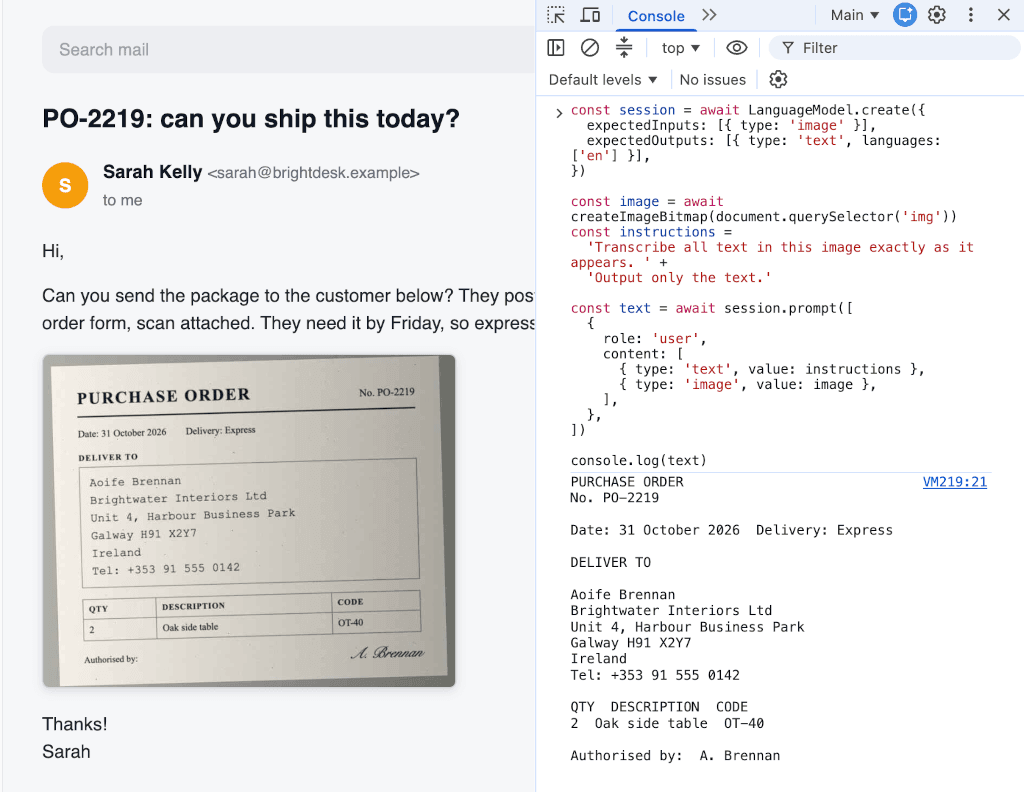
The whole decoding takes place inside the browser.
Will it run on my machine?
Before trying any code, it's worth checking that your browser and machine are up to it:
- Chrome 148 or newer, on desktop: Windows 10 or 11, macOS 13+, Linux, or a Chromebook Plus.
- Enough hardware. Either a GPU with more than 4 GB of VRAM, or 16 GB of RAM and at least 4 CPU cores, plus that 22 GB of free disk space.
- Image input switched on. Depending on your Chrome version, you may need to enable
chrome://flags/#prompt-api-for-gemini-nano-multimodal-input, then restart Chrome.
The quickest way to check is to visit chrome://on-device-internals. It shows whether your device qualifies, whether the model has been downloaded yet, and how big it currently is.
Try it in your console
Here's the fastest way to see it working. Open DevTools on any page, and start with plain text:
const session = await LanguageModel.create()

const reply = await session.prompt(
  'In one sentence, why is retyping text from a screenshot so annoying?',
)

console.log(reply)

// Reply:
// Retyping text from a screenshot is annoying because it's time-consuming, prone to errors, and often tedious compared to simply copying and pasting the original text.
That's a language model running on your own machine, answering a question from an ordinary web page. No server, no API key, and no dependency to install. This text-only version doesn't need image input switched on, so it's also a handy check that the basics are working.
Now we've seen text work, on to something more advanced! Drag a screenshot into a new Chrome tab, open DevTools there, and paste this:
const session = await LanguageModel.create({
  expectedInputs: [{ type: 'image' }],
  expectedOutputs: [{ type: 'text', languages: ['en'] }],
})

const image = await createImageBitmap(document.querySelector('img'))
const instructions =
  'Transcribe all text in this image exactly as it appears. ' +
  'Output only the text.'

const text = await session.prompt([
  {
    role: 'user',
    content: [
      { type: 'text', value: instructions },
      { type: 'image', value: image },
    ],
  },
])

console.log(text)
Only two things have changed. The options passed to create() tell Chrome we'll be sending images, so it can check that image input is available. And the prompt is now a message with two parts: our instructions as text, and the screenshot as an ImageBitmap. That's it! The text of your screenshot, read entirely on your own machine.
A couple of things to expect the first time:
- The first run downloads the model. That can take a few minutes. After that, it's cached.
- Chrome wants a click first. If the model isn't downloaded yet,
create()will only start the download once you've interacted with the page. If it complains, click anywhere on the page and run it again.
Once the model is downloaded, reading a typical screenshot is quick. On my M1 Macbook with 16GB of ram,, a short snippet like a booking reference took under a second, and a dense paragraph of text about 2-3 seconds.
Making it a little more robust
The console version is great for kicking the tyres. For something you'd hand to someone else, there are a few more pieces to add.
Check before you start. availability() takes the same options as create(), and tells you whether the model is ready, still needs downloading, or can't run here at all:
const options = {
  expectedInputs: [{ type: 'image' }],
  expectedOutputs: [{ type: 'text', languages: ['en'] }],
}

const availability = await LanguageModel.availability(options)
// 'available', 'downloadable', 'downloading' or 'unavailable'
Show download progress. A multi-gigabyte download with no feedback looks a lot like something has hung. create() accepts a monitor, which reports progress as a fraction:
const session = await LanguageModel.create({
  ...options,
  monitor(m) {
    m.addEventListener('downloadprogress', (e) => {
      status.textContent = `Downloading model: ${Math.round(e.loaded * 100)}%`
    })
  },
})
Stream the response. For anything more than a line or two, promptStreaming() makes it feel much faster, as the text appears as it's read rather than all at once at the end:
for await (const chunk of session.promptStreaming(messages)) {
  output.textContent += chunk
}
And a few other sharp edges you'll likely run into:
- Load once, clone per image. Creating a session loads the model into memory, which takes a few seconds. Create one up front, then call
session.clone()for each image. Every image gets a fresh conversation, without the previous image still sitting in the model's context, and without paying the loading cost again. - Be specific in the prompt. Ask vaguely and it'll happily describe the image instead of transcribing it. "Exactly as it appears" and "output only the text" keep it on task.
- Check what it gives you. On a crisp screenshot it's very good. On a blurry photo, it can confidently "fix" a word it couldn't quite read. If it matters, give it a glance before you paste.
- It's non-deterministic. Running the same process multiple times doesn't guarantee the same result. These are non-deterministic tools under the hood, after all! But something to keep in mind if you are dealing with images which have obscured text, awkward angles, etc.
- Cross-origin images are off limits. The browser won't let a page read the pixels of an image from another domain, unless that domain allows it with CORS headers. A screenshot dragged into its own tab doesn't have this problem.
Not production-ready (yet)
This is great for personal tools, but is probably a bit of a way from building a core feature around just yet. It's Chrome only, it needs a recent version on a fairly capable desktop, and depending on your version, image input may still be behind a flag. If you do use it on a site, treat it as progressive enhancement: check availability(), and have a fallback, even if the fallback is "please type it in".
Meet Pluck
Pasting code into DevTools every time someone sends me a screenshot was getting old, so I wrapped it up in a Chrome extension. It's called Pluck, because it plucks the text out of any image.
You can install Pluck from the Chrome Web Store, or browse the source on GitHub.
Click the Pluck icon (or press Alt+Shift+O), and every image on the page gets a little "OCR" badge in its corner. Click a badge, and the text streams into a panel. There's a Copy button alongside the text, which will save the text to your clipboard automatically.
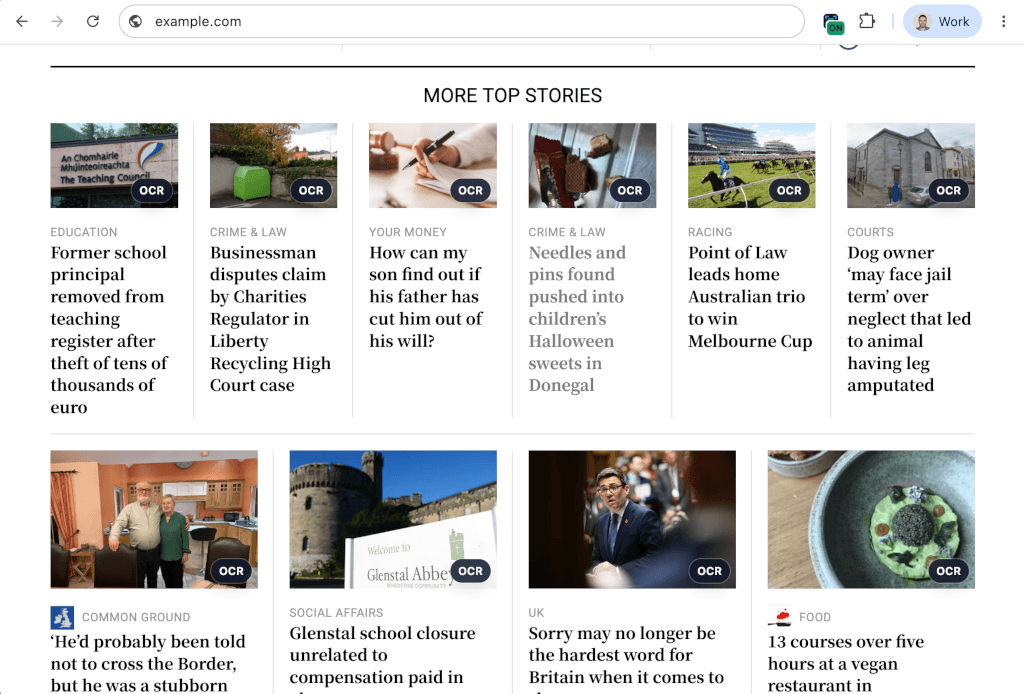
Pluck switched on: every image gets a badge.
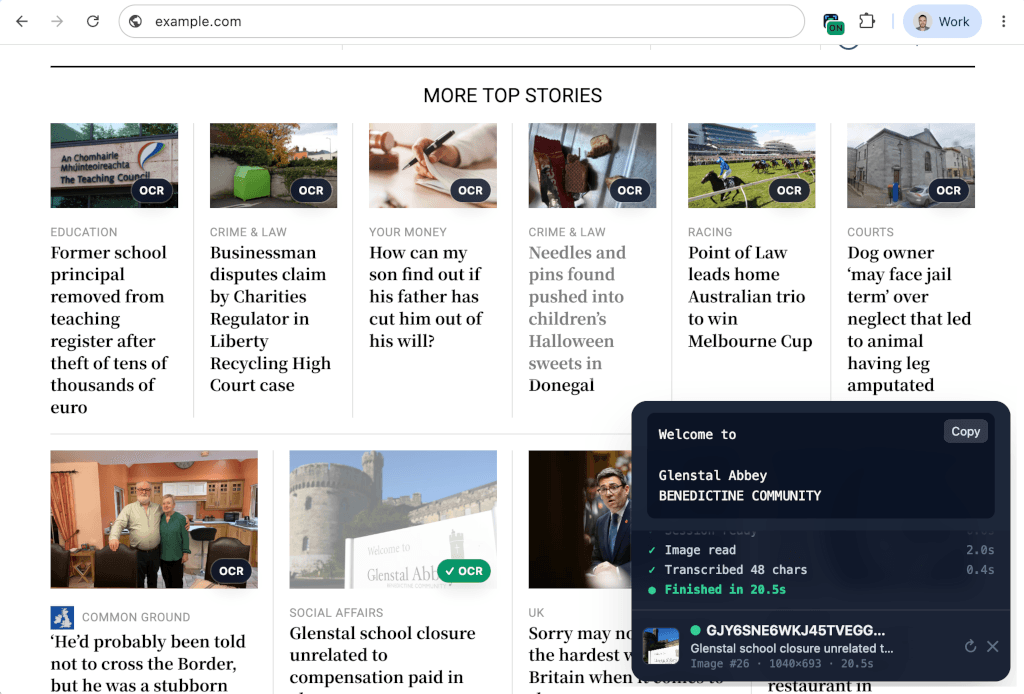
The text streams in as it's read, ready to copy.
So now, when someone sends me a screenshot of text I need, I drag it into a Chrome tab, click the badge, and paste. Chrome opens a dropped file as a file:// page, which extensions can't touch by default, so there's one bit of setup: switch on "Allow access to file URLs" in Pluck's extension details.
A few things it does that the console version doesn't:
It explains what's missing. If the model can't run, Pluck works out whether Chrome's AI is switched off, image input isn't enabled, there's an access issue with the image, or the machine just isn't up to it. If it's something which can be fixed on-device, it then shows the exact
chrome://address to fix it, with a copy button, since web pages aren't allowed to link tochrome://URLs. Otherwise a clear error message explains the problem.It asks for very little. Pluck only requests the
activeTabandscriptingpermissions, so it can't see a page until you click its icon on that page. Nothing runs in the background, and there's nowhere for it to phone home to.It doesn't fight the page. The whole UI lives in a shadow DOM with its own small stylesheet, so the page's styles can't break it, and a strict Content Security Policy doesn't get in its way.
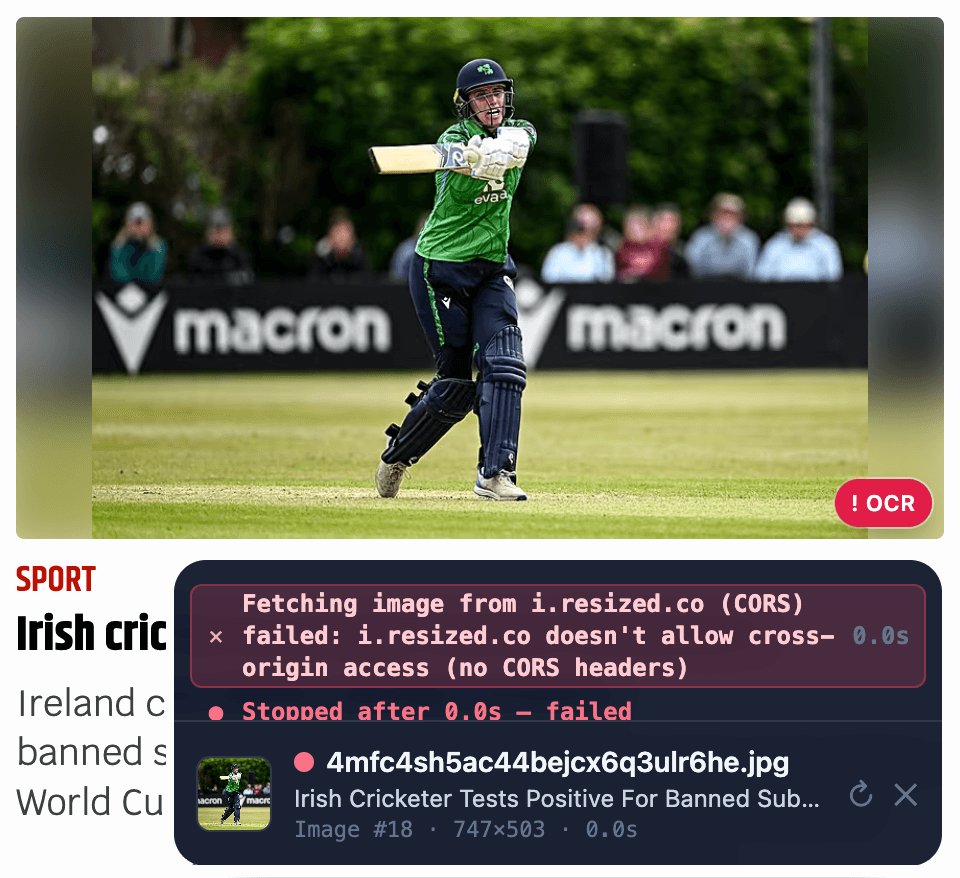
Explaining what has gone wrong.
Try it out
Pluck is on the Chrome Web Store, and the full source is on GitHub. The code is very simple - a manifest, a background script, and a javascript file.
What else can the browser do now?
This is one of a series of experiments in seeing how far the browser can take us on its own. On-device AI is a particularly nice fit for anything involving personal data, because the simplest privacy policy is not collecting the data in the first place. In Smile for 10% Off, I used on-device face and smile detection to give out a coffee discount, without a single video frame leaving the browser. Screen Portal made use of video streams and canvas to let us selectively share a portion of our screen on video calls.
If you'd like to see more of what's possible without a dependency in sight, the delete-your-dependencies repo has runnable demos of screen capture, cross-tab messaging, Web Bluetooth and on-device AI. They're the companion to my Delete Your Dependencies talk. I'll be giving this talk at Build Stuff in Vilnius this December. Tickets are still available (both in-person and online!). Get yours today, and find out exactly how far the browser can take us now.
Happy plucking!