
Screen Portal: sharing a partial screen region in Google Meet
I was recently getting ready for a demo. Android Studio was running, the app preview was looking exactly how I wanted it, and all I needed to do was share that preview window in Google Meet. Simple, right?
Not quite. Google Meet gives you three options for sharing: your entire screen, an application window, or a Chrome tab. The app preview I needed to show was one pane inside Android Studio, not a separate window. Sharing the full Android Studio window would mean my audience would see the entire IDE: the file tree, the editor, the terminal, the build output - everything except a clean view of the thing I actually wanted to present. It's doable, but distracting!
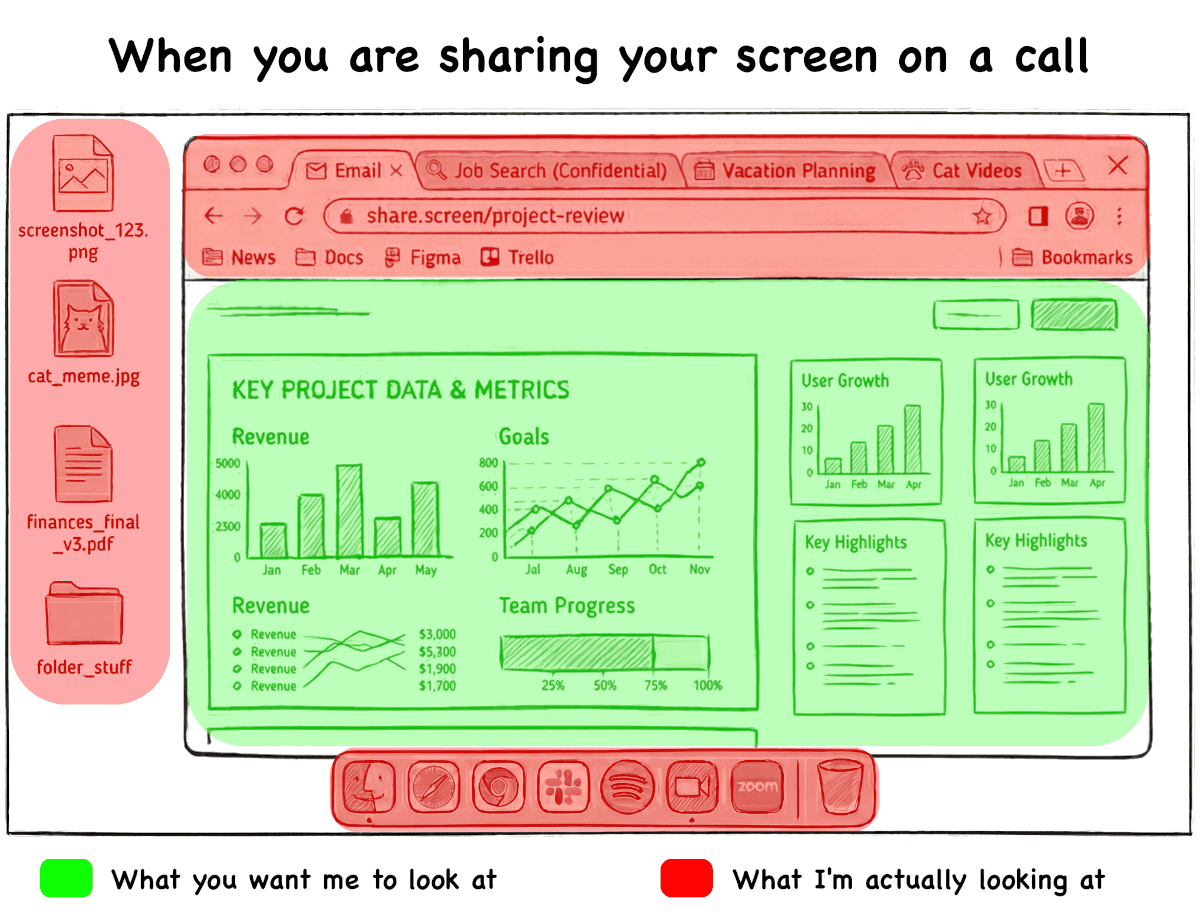
The problem
The issue isn't specific to Android Studio. I'm very much an android n00b, so no doubt spending 10 minutes configuring the tool would allow me to break the app into its own view pane. But why spend 10 minutes learning a tool when you can spend 15 minutes on a workaround with Claude? Don't answer that... But seriously, the broader issue is that any time you want to share a region of an application - a design preview in Figma, a specific panel in your IDE, a slack conversation without showing all of your channels, a video player inside a larger app - this is a challenge with Google Meet. Tools like Zoom do allow you to select specific regions to share, but Google Meet (and a number of other video call tools) think in terms of windows and tabs, not arbitrary screen regions.
There are some workarounds. You could detach the panel into its own window, if the application supports it. You could crop your screen in OBS and set up a virtual camera. You could resize the application window so only the relevant bit is visible. None of these are quick, and most of them are fragile - one accidental resize and your audience is looking at your file tree again.
What I really wanted was something like a portal: take a rectangle of pixels from anywhere on my screen and relay them, live, into a Chrome tab. Then I could share that tab in Google Meet and the audience would see exactly what I wanted them to see.
The solution: a browser-native screen crop
It turns out modern browsers have everything we need to build this, and it takes surprisingly little code.
The Screen Capture API (getDisplayMedia) lets a webpage request access to your screen, a window, or a tab as a live video stream. It's the same API that powers screen sharing in web-based video call tools. Once we have that stream, we can render it to a <video> element and, crucially, use <canvas> to draw only the portion we care about.
The whole approach is three steps:
- Capture - the page calls
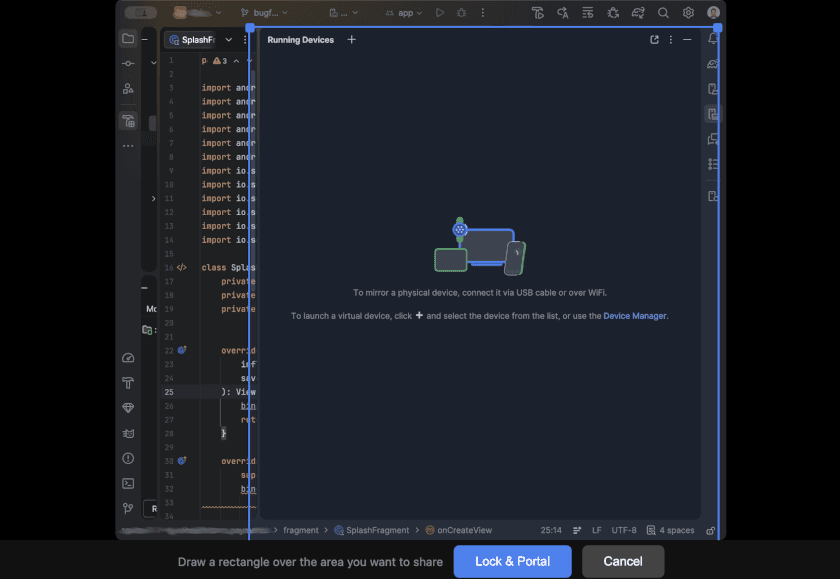
getDisplayMedia()and the browser prompts you to pick what to capture (your full screen, or a specific window) - Select - the full capture is shown with a draggable, resizable selection rectangle. You position it over the region you want to share
- Portal - the page switches to showing only the cropped region, rendered to a canvas at native resolution, updating every frame via
requestAnimationFrame
That's all there is to it! The Chrome tab now contains a live, cropped view of your screen. Share the tab in Google Meet and your audience sees exactly the region you selected.
How it works under the hood
The core of the portal is just a few lines:
async function startCapture() {
  const stream = await navigator.mediaDevices.getDisplayMedia({
    video: { frameRate: 30 },
    audio: false,
  });
  video.srcObject = stream;
}
This gives us a live MediaStream wired to a hidden <video> element. The video decodes frames continuously, even when it's not visible on screen.
For the selection phase, the video is displayed with an overlay, and mouse events on that overlay let you draw and adjust a rectangle. The coordinates are tracked in overlay-relative pixels.
When you lock the selection, those overlay-pixel coordinates are mapped back to the source video's native resolution - accounting for the object-fit: contain scaling - and a render loop kicks in:
function renderPortal(sx, sy, sw, sh) {
  canvas.width = Math.round(sw);
  canvas.height = Math.round(sh);

  function draw() {
    ctx.drawImage(video, sx, sy, sw, sh, 0, 0, canvas.width, canvas.height);
    requestAnimationFrame(draw);
  }
  draw();
}
The drawImage call does the cropping: it reads a rectangle from the source video (sx, sy, sw, sh) and draws it to the full canvas. Because the canvas resolution matches the source region, you get a pixel-perfect crop with no scaling artifacts.
One subtlety worth noting: when the portal view is active, the setup screen (containing the <video> element) can't be set to display: none. Browsers stop decoding video frames for elements that aren't in the rendering tree. This drove me mad initially - the portal seems to wor flawlessly at the start, but then remains a static image, not updating as I drive the application I want to mirror. To get around this, the setup screen is shrunk to 1x1 pixels with zero opacity - invisible to the user, but enough to allow the browser to keep decoding the video. A small trick, but without it you get a frozen snapshot instead of a live portal.
It's also a Chrome extension!
The standalone HTML file works perfectly if you just want to open it locally, but sharing it with non-technical colleagues means asking them to download a file and open it in their browser. Not ideal.
A Chrome extension makes this a one-click experience: install the extension, click the icon, and a new tab opens with the portal ready to go. The extension itself is minimal - a Manifest V3 manifest.json, a three-line service worker that opens the portal page on icon click, and the same HTML/JS from the standalone version (split into separate files, since Manifest V3's Content Security Policy doesn't allow inline scripts).
// background.js (the whole file!)
chrome.action.onClicked.addListener(() => {
  chrome.tabs.create({ url: chrome.runtime.getURL("portal.html") });
});
This requires no additional permissions beyond what getDisplayMedia already requires. It's a transparent wrapper around a web page.
Try it out
The extension is available on the Chrome Web Store, and the full source is on GitHub.
It's a single HTML page, a single JS file, and a manifest. No build step, no dependencies, no framework. Happy sharing!