
From Smile to Receipt: Stripe Terminal Payments and Printing
In part one, we pointed a browser at a willing coffee customer, detected a smile entirely on-device, and turned it into a 10% discount. We finished up with two things in memory: an amount to charge, and a small canvas with a happy face in it.
We want people to walk away with a happy memento of their bright start to the day. In this article, we'll cover collecting payment, then giving them a printed receipt with a copy of their lovely smile.
That second part is the fun challenge. A receipt printer can only put black dots on white paper, so we need to turn a bright, colourful webcam photo into something it can print, while keeping the face recognisable.
The frontend and Node server are both in the smile-printer repository on GitHub.
Why a V660p?
A browser can actually print a receipt with no server at all. Web Bluetooth lets a page talk to a cheap Bluetooth receipt printer directly, and there's a working example in my delete-your-dependencies demos. But it's Chromium-only, every printer speaks a slightly different dialect, and - crucially for a till - it knows nothing about payments.
The Verifone V660p is a card reader with a thermal printer built in, so one device takes the money and prints the receipt. Stripe recommends its server-driven integration for this reader: our server talks to Stripe, and Stripe talks to the reader over the internet. There's no Bluetooth pairing, no Terminal SDK in the browser, and no secret key anywhere near the till page:
Browser → our Node server → Stripe → V660p
The catch is that every reader operation is asynchronous. When Stripe accepts a command, the customer may still be rooting around in a bag for their card, typing a PIN, or discovering the printer has run out of paper. We'll need to handle that carefully. (V660p availability varies by country, so check before planning a coffee empire around it.)
Pick a terminal
Before the customer can pay, the till needs a terminal to send the payment to. The operator picks one from a dropdown, filled in by asking our server which readers are available:
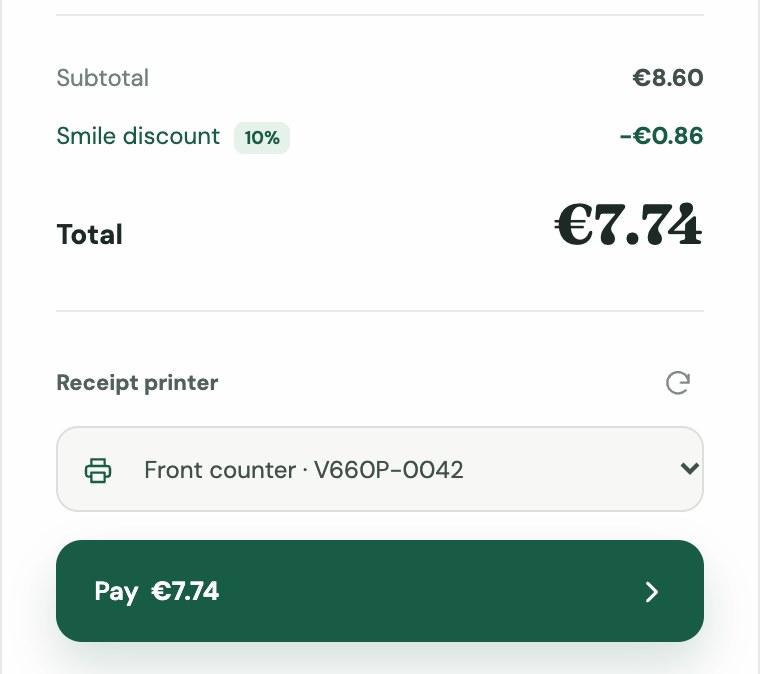
A V660p picked, discount applied, and ready to pay.
Stripe's reader list can include handheld readers with no printer, simulated readers, and V660ps that are switched off. Only an online V660p is any use to us:
// server/terminal-service.js - runs on our Node server, never in the browser
const { data } = await stripe.terminal.readers.list({ limit: 100 })

const printers = data.filter(
  (reader) => reader.device_type === 'verifone_v660p' && reader.status === 'online',
)
If the list is empty, the Pay button stays disabled. A missing printer is not something we want to discover after taking somebody's money.
Take the payment
When the operator presses Pay, the browser tells our server how many coffees, and whether the smile discount was unlocked. The server works out the amount, creates a card_present PaymentIntent, and hands it to the chosen reader:
// server/terminal-service.js
const subtotal = config.coffeePrice * quantity // 430 cents per coffee
const amount = discountApplied ? subtotal - Math.round(subtotal * 0.1) : subtotal

const intent = await stripe.paymentIntents.create(
  {
    amount,
    currency: 'eur',
    payment_method_types: ['card_present'],
    capture_method: 'automatic_async',
    metadata: { smile_printer_reader_id: readerId },
  },
  { idempotencyKey: `smile-printer:${checkoutKey}:intent` },
)

await stripe.terminal.readers.processPaymentIntent(readerId, {
  payment_intent: intent.id,
})
That idempotencyKey matters. Stripe's SDK already adds keys to its own automatic network retries, but it has no way of knowing that two separate requests from our till belong to the same checkout - say, a "Check payment" click after a timeout. So the browser creates a checkoutKey (a crypto.randomUUID()) once per order, and sends it with every attempt. Same key, same PaymentIntent, and no chance of charging the customer twice. I've written about idempotency before, and payments are exactly where it earns its keep.
There's one catch. For a repeated key, Stripe replays the original response - and a brand-new PaymentIntent always says requires_payment_method, even if the customer has since paid. So before doing anything else, the server asks Stripe what's true now:
const current = await stripe.paymentIntents.retrieve(intent.id)
if (current.status === 'succeeded') return current // already paid - don't send it to the reader again
A testing gotcha: the amount is the test case
When testing online payments, Stripe gives us a different test card number for each scenario - one for a decline, another for insufficient funds, and so on. With Terminal, there's a single physical test card, so the outcome is picked by the amount instead. The last two digits of the amount trigger specific results: 05 is a decline, 55 is an incorrect PIN, 65 hits a withdrawal limit, and so on.
That can be a real surprise when a discount happens to land on one of those endings. At €4.25 a coffee, two discounted coffees come to €7.65, which the test card would decline every single time - and it looks exactly like a bug in our integration! That's why Smile Coffee charges €4.30, which keeps all the common totals clear of the special endings. It's worth keeping in mind whenever we're testing discounts locally.
Wait for the money
processPaymentIntent() returning doesn't mean anyone has paid. It means Stripe has passed the instruction on, and the reader is now asking for a card. The PaymentIntent will happily sit at requires_payment_method the whole time the customer is rooting for their card, so it can't tell us when to stop waiting. The reader can.
The reader has an action, which moves from in_progress to succeeded or failed. Our server never talks to the reader directly - the reader reports to Stripe, and we read its status from Stripe's API. To keep the demo simple, the server polls Stripe for the reader's current action, then double-checks the PaymentIntent, which has the final word on whether money actually moved:
async function waitForPayment(readerId, paymentIntentId) {
  for (let attempt = 0; attempt < 90; attempt += 1) {
    const { action } = await stripe.terminal.readers.retrieve(readerId)
    const ours = action?.process_payment_intent?.payment_intent === paymentIntentId

    if (ours && action.status === 'failed') {
      // A dropped connection can fail the action after the card was already
      // authorised, so check the PaymentIntent before giving up
      const intent = await stripe.paymentIntents.retrieve(paymentIntentId)
      if (intent.status === 'succeeded') return intent
      throw new PaymentError(action.failure_code, action.failure_message) // e.g. customer_canceled
    }
    if (ours && action.status === 'succeeded') {
      const intent = await stripe.paymentIntents.retrieve(paymentIntentId)
      if (intent.status === 'succeeded') return intent
    }

    await wait(1000)
  }

  throw new PaymentTimeoutError()
}
The ours check matters: the reader only has one current action, so we make sure it's still about our payment before trusting its status. And a failed action isn't always a failed payment - a connection_error, for example, can happen after Stripe has authorised the card - so the PaymentIntent gets the last word there too.
A timeout means "we don't know yet", not "it failed". So rather than offering to charge the card again, the till switches its button to "Check payment". That sends the same checkout key again, and thanks to the re-check above, picks up whatever actually happened.
For production, Stripe recommends webhooks (terminal.reader.action_succeeded and terminal.reader.action_failed) over holding an HTTP request open while somebody types in their PIN. Polling is still handy as a backup, for checking what's true when a webhook is late.
Can thermal printers play nice with colour photographs?
With the payment confirmed, we can print. First, though, the photo needs some work.
Stripe's print content guidelines ask for a black and white PNG or JPEG, at most 384 pixels wide, and under 100 KB. A thermal printer has no ink - it heats tiny dots on special paper, and each dot is either on or off. A normal photo has 256 shades of grey; this printer has two.
The obvious approach - anything darker than mid-grey goes black - is technically valid, and visually brutal. Eyes turn into black holes.
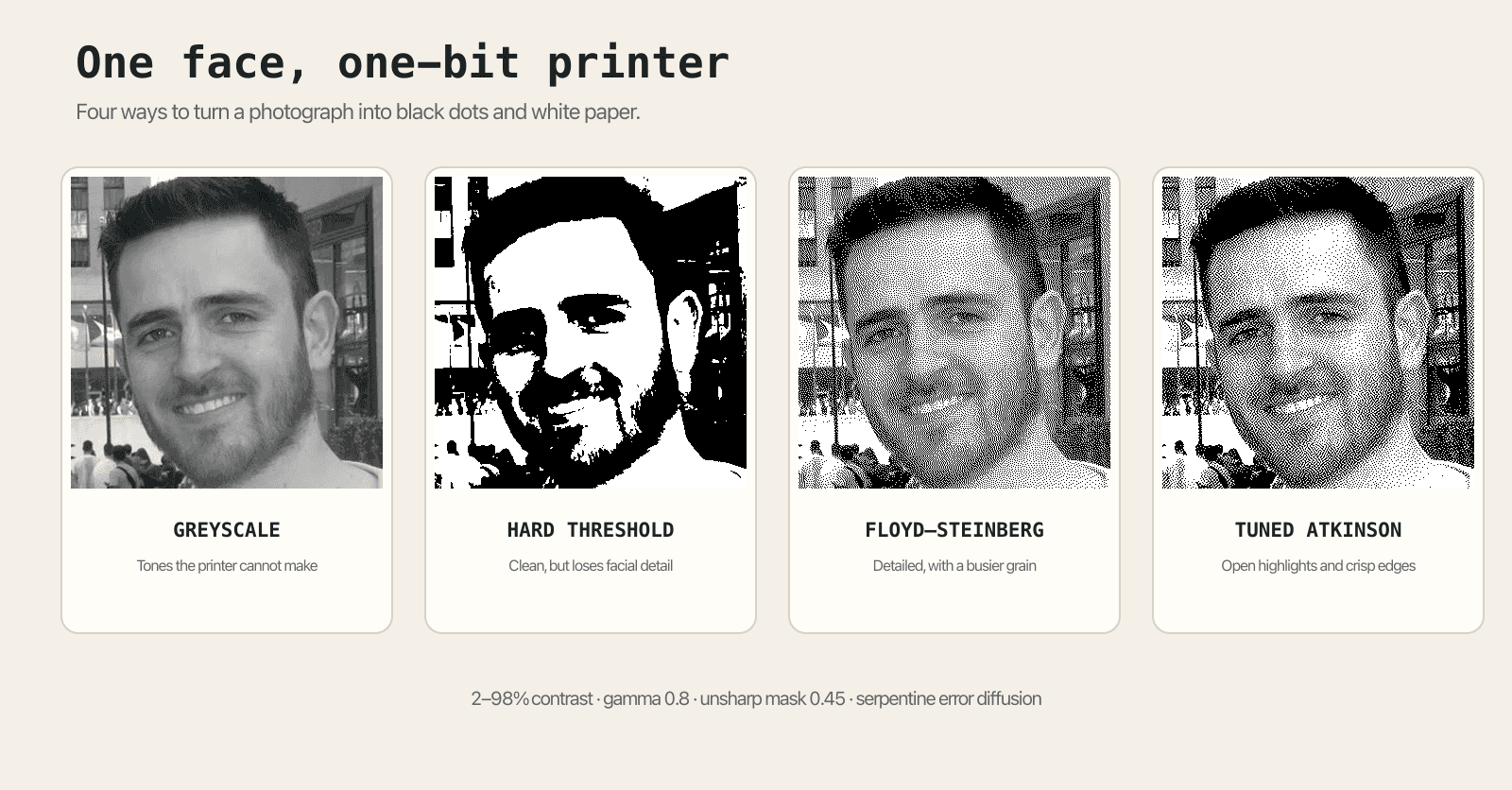
The same photo, four ways.
Dithering, briefly
Dithering fakes shades of grey using patterns of black and white dots. From a normal distance, our eyes blend them back into tones.
The classic way to do it is error diffusion. Walk through the image one pixel at a time, round each pixel to black or white, then work out how wrong that was - the error - and push it onto the neighbouring pixels we haven't reached yet. If a mid-grey pixel gets rounded down to black, its neighbours get a little brighter to compensate.
Floyd-Steinberg dithering passes on all of the error, which keeps lots of detail but gives a busy, even grain that looks muddy on cheap receipt paper. Atkinson dithering, designed for the original Macintosh, only passes on three quarters of it. Throwing the rest away means near-white areas snap cleanly to white, and edges stay crisp - which suits faces, and thermal printers, nicely:
function ditherAtkinson(grey, width, height) {
  const pixels = new Float32Array(grey)
  const output = new Uint8Array(grey.length)

  const spread = (x, y, error) => {
    if (x >= 0 && x < width && y < height) pixels[y * width + x] += error
  }

  for (let y = 0; y < height; y += 1) {
    for (let x = 0; x < width; x += 1) {
      const i = y * width + x
      const value = pixels[i] < 128 ? 0 : 255
      const error = (pixels[i] - value) / 8 // 1/8 to each of six neighbours

      output[i] = value
      spread(x + 1, y, error)
      spread(x + 2, y, error)
      spread(x - 1, y + 1, error)
      spread(x, y + 1, error)
      spread(x + 1, y + 1, error)
      spread(x, y + 2, error)
    }
  }

  return output
}
The version in the repo also alternates direction on every row ("serpentine" dithering), so the error doesn't always drift the same way and leave diagonal streaks.
Dithering can't recover detail that isn't there, though, and webcam photos under café lighting tend to be flat and muddy. So before dithering, the browser stretches the contrast, lifts the midtones slightly, and applies a touch of sharpening. That preparation makes as much difference as the choice of algorithm.
Print the receipt
Stripe's print endpoint takes an image - not HTML, and not printer commands. So the browser draws the whole receipt onto a 384px-wide canvas: shop name, the dithered photo, line items, total and footer. Canvas text is anti-aliased, so once everything's drawn, every pixel is forced to pure black or white, to stop thin strokes breaking up on paper. A few blank rows at the bottom feed the last line past the tear bar, so the operator doesn't rip straight through "THANKS FOR BRIGHTENING OUR DAY".
The server treats that image as untrusted input. Sharp checks its size, resizes it to exactly 384 pixels wide, and writes a two-colour PNG, which comes in comfortably under the 100 KB limit. Before printing, the server also confirms the PaymentIntent has succeeded, and that it was paid on the same reader we're about to print on.
Then the print itself, which has a couple of surprises. It's a file upload, so it lives on files.stripe.com rather than the usual api.stripe.com. And at the time of writing, the Stripe Node library has no method for it, so we use fetch:
// No Content-Type header: fetch sets it, with the multipart boundary, from the FormData
const form = new FormData()
form.append('type', 'image')
form.append('image', new Blob([receiptPng], { type: 'image/png' }), 'receipt.png')

await fetch(`https://files.stripe.com/v1/terminal/readers/${readerId}/print_content`, {
  method: 'POST',
  headers: {
    Authorization: `Basic ${Buffer.from(`${stripeSecretKey}:`).toString('base64')}`,
  },
  body: form,
})
Just like payments, a successful response means the command was accepted, not that paper came out. We poll the reader until the print succeeds or fails, and the failure codes are refreshingly physical: reason_out_of_paper, reason_paperjam, reason_cover_open. When printing fails, the till keeps hold of the paid PaymentIntent and switches its button to "Retry receipt", which only calls the print endpoint. Whatever happens with the printer, a retry must never charge the customer again.
Wrapping up
It's a deliberately silly premise, but none of the useful parts depend on coffee or facial expressions. Confirming payment, then turning the transaction into a small physical artefact, works just as well for tickets, collection slips, queue numbers or event photos.
And here's the end result, fresh off the V660p:
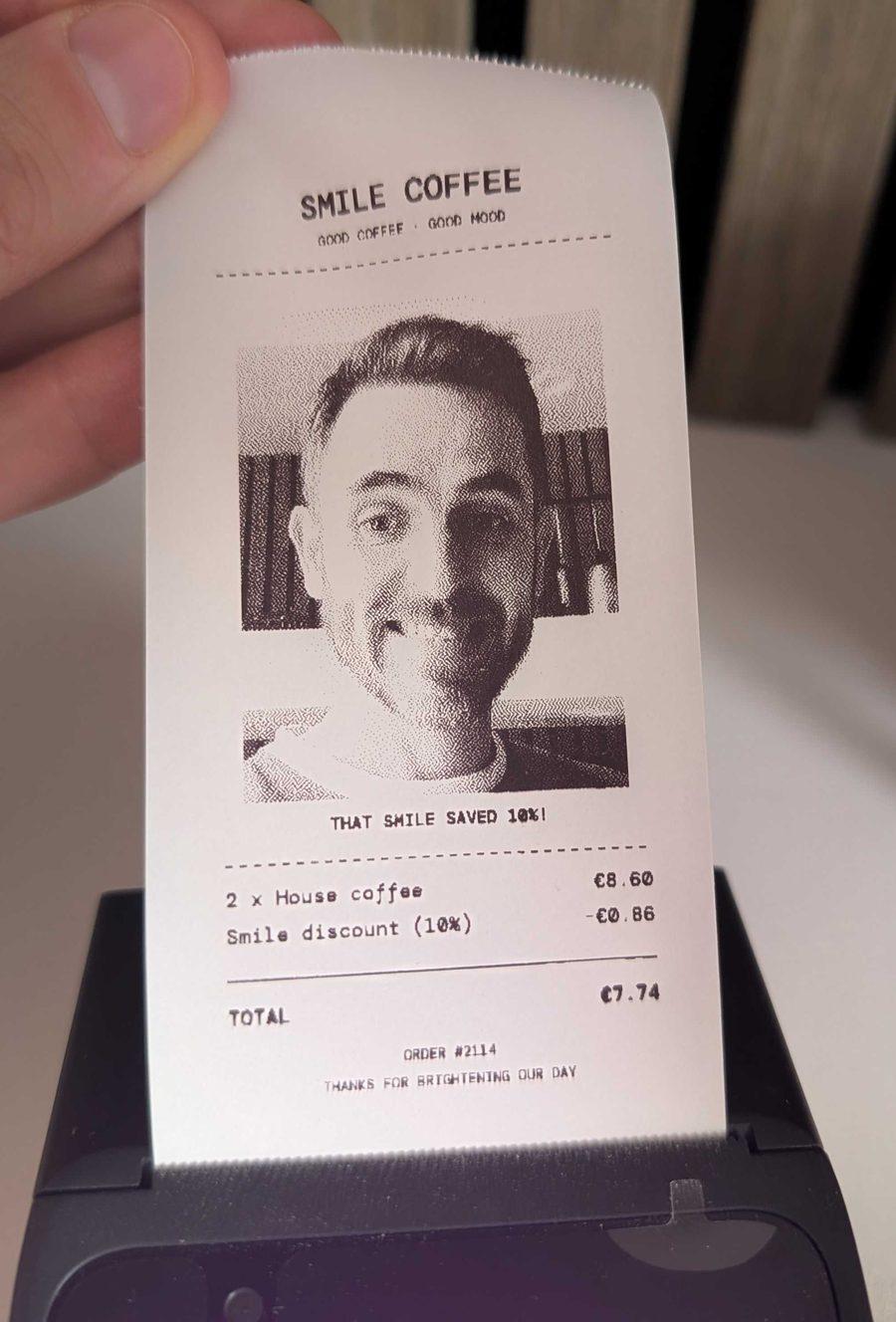
Proof of purchase, and proof of (something approximating) a smile.
The whole implementation is in the smile-printer repository, and part one covers the private, browser-side face detection. For more things the browser can do on its own, from Bluetooth printers to on-device AI, have a look at the delete-your-dependencies demos, or catch my Delete Your Dependencies talk at an upcoming conference. Happy printing!