
Custom Stripe Payment Notifications with Workflows - No Code Required!
If we're running a business on Stripe, chances are we've got a few different payment flows in play. We might have a full ecommerce checkout on our website, but also send payment links to customers over email or by phone for ad-hoc or in-person sales. Stripe's built-in email notifications cover all successful payments on our account, but what if we only want to be notified when a payment link is paid? Maybe our online orders already have their own fulfilment flow, and a blanket "you received a payment" email for every single transaction would just be noise.
This was exactly the challenge a client of ours ran into recently. They wanted their team to receive an email whenever a customer paid via a payment link, so they could act on it immediately. Their website orders were already handled, but payment links were a newer addition to their workflow, created on the fly for phone and in-person customers, and they needed visibility on when those were completed.
The good news is that this is completely possible within Stripe, with no code, no third-party tools like Zapier, and no developer involvement required. The tool that makes it possible is Stripe Workflows.
What are Stripe Workflows?
Workflows are Stripe's built-in automation tool. They let us define rules that respond to events on our account, like "when X happens, do Y". Think of them as a native alternative to building single-function webhook listeners, or connecting third-party automation platforms.
You build workflows directly in the Stripe dashboard using a visual editor. Choose a trigger event first, e.g. a payment succeeds, an invoice is created. Then add conditions to filter which events we care about, and define actions to take when those conditions are met - like sending an email to a team member, updating metadata, editing a field on an object, and so on.
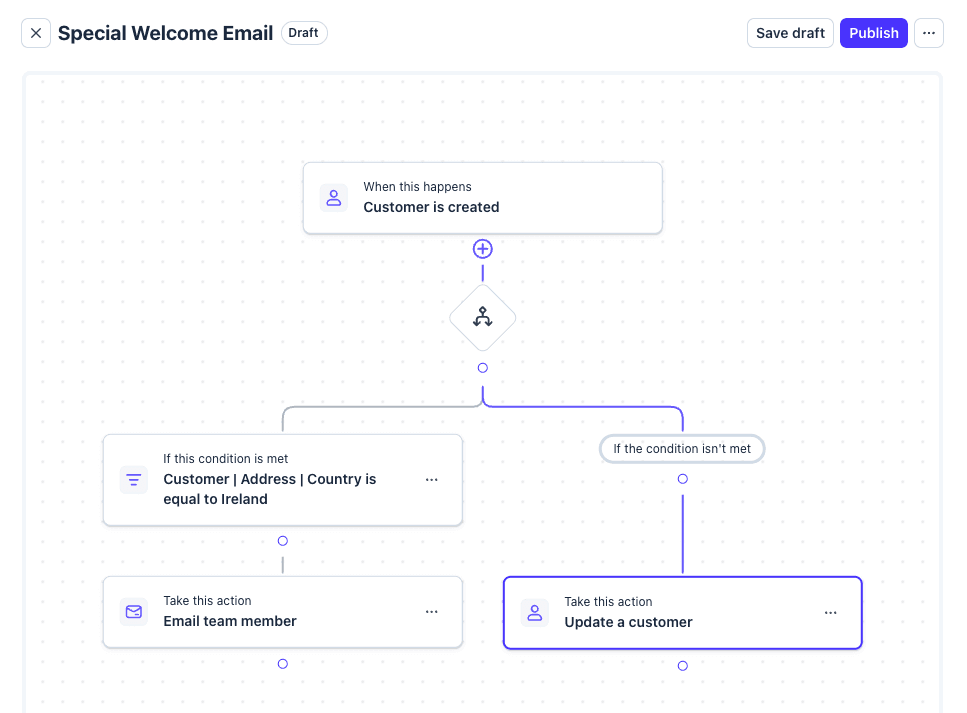
Workflows are a relatively new product within Stripe, but the functionality is expanding rapidly. The idea is to replace a lot of the plumbing and single-purpose webhook listeners that businesses and developers have had to build and maintain themselves. For something like this kind of targeted email notification, they're a perfect fit.
The Challenge: Filtering Payment Link Payments
Before diving into the setup, it's worth understanding why this isn't just a case of turning on a notification. When a customer completes a payment link, what actually happens under the hood is that Stripe creates a Checkout Session. This is the same mechanism often used by website checkouts, subscription signups, and other payment flows. They all fire the same checkout.session.completed event within Stripe to indicate completion of a Checkout flow.
So if we set up a workflow that triggers on every checkout.session.completed event, we'd be notified of all checkout payments, not just the payment link ones. We need a way to tell our workflow: "only fire for payment link payments."
The ideal approach would be to add custom metadata to the payment link and filter on that. If we're creating payment links via the API, we can do this easily. However, we want a no-code solution here. The Stripe dashboard doesn't currently expose a metadata field when creating payment links through the UI. We need to take another approach.
This is where the Client Reference ID comes in.
Using the Client Reference ID
When we create a payment link in the Stripe dashboard, there's a small but powerful feature hiding in plain sight. Next to the generated URL, you'll see a "+ URL parameters" button.
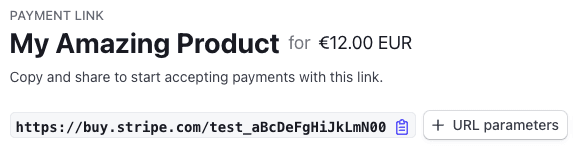
Clicking this opens a modal where we can append additional parameters to the link, including a Client Reference ID. These parameters are very useful for tracking effectiveness of payment links. The client reference ID is a free-text field that gets passed through to the checkout session when the customer pays. It was originally designed for associating payments with your own internal references, but it works perfectly as a marker we can filter on in our workflow.
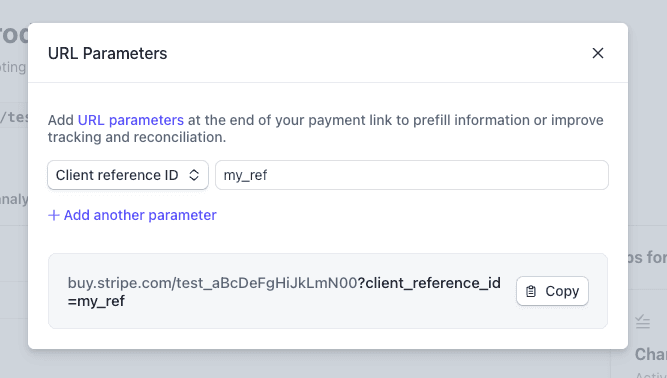
When creating a payment link for a customer, the process looks like this:
- Create the payment link as normal in the Stripe dashboard
- Click "+ URL parameters" beside the generated link
- Select "Client Reference ID" and enter a reference - this could be a customer name, order reference, or the initials of the team member creating it
- Click "Copy" to copy the full URL with the parameter appended to your clipboard
- Send the link to your customer via email, whatsapp, etc
The reference we enter serves double duty: it acts as the marker that tells our workflow "this is a payment link payment", and it gives us a useful reference in the notification email, e.g. which customer or team member it relates to.
The key thing to note here is that regular checkout sessions from our website won't have this field populated. Payment links where you've added a client reference ID will have it. That's how we'll tell these transactions apart in our workflow configuration.
Another useful thing to note is that we can change these parameters each time we send the link. We might be selling something like a book with a payment link url of buy.stripe.com/abcd, and send it to customer 1 as buy.stripe.com/abcd?client_reference_id=customer_1, but to customer 2 as buy.stripe.com/abcd?client_reference_id=customer_2. The same product, only a single payment link created, but multiple customers' payments tracked individually through it.
Setting Up the Workflow
With our payment links now carrying a client reference ID, we can build a workflow that only triggers for these payments. Here's how to set it up:
1. Create a New Workflow
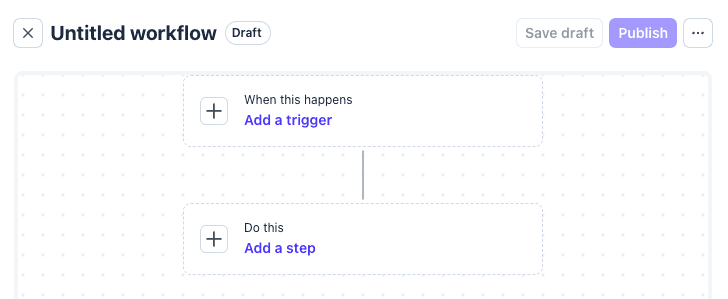
Head to Workflows in the Stripe dashboard and click "Create workflow". Click the "Untitled Workflow" label at the top and name it something descriptive.
2. Set the Trigger
Click the "Add a trigger" prompt in the middle of the screen. You'll be given a list of all possible events we can listen to.
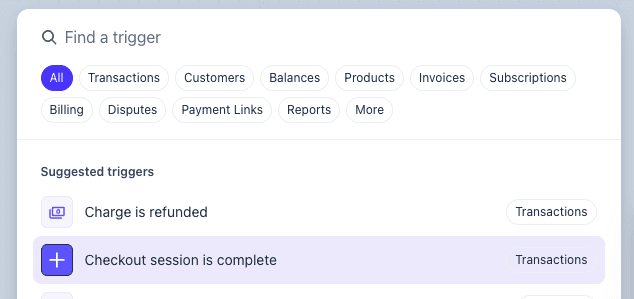
Choose "Checkout session is complete" as our trigger event. This fires every time any checkout session completes on our account.
3. Add a Condition
This is the crucial step. We need to add a condition that checks whether the checkout session has a client reference ID populated. A "Trigger Conditions" menu should have appeared on the right of the screen when you selected "Checkout session is complete" in the previous screen.
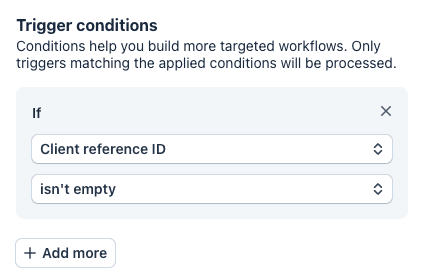
In the Trigger Conditions panel, click into the first field and select Client Reference ID. In the next dropdown, we need to set it to "is not empty". We don't care what the field is, just that it isn't empty. This means the workflow will only continue for checkout sessions where a client reference ID was provided, i.e. our payment link payments. Regular website checkout payments, which won't have this field set, will be ignored.
4. Add the Action
Having set up a trigger, we need to set up the action. In this case, we're going to send an email to the team, alerting them to this payment. Click "Add a Step" in the second box in the centre of the screen, then "Add Action". On the action list which pops up, select "Email team member", and a side panel will appear again.
In the first dropdown, we can select as many people as we want to notify. The list here is populated by the users on the Stripe account, i.e. we can't send an arbitrary email to someone not on the Stripe account. The Body field allows us to put in a templated message, to explain to the recipient what is going on.
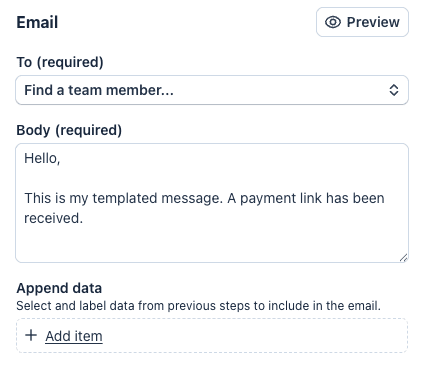
It's the "Append data" section that we're really interested in. This is how we're going to get the email template to include useful information about our payment. Clicking "Add item" gives us two inputs - "My label" and "Value". In "My label" we can add any name which makes sense to us. Clicking in to "Value", we get an autocomplete list similar to what we saw when selecting our Client Reference ID in the trigger. For this example, we're going to select the client reference, amount, customer email, and name.
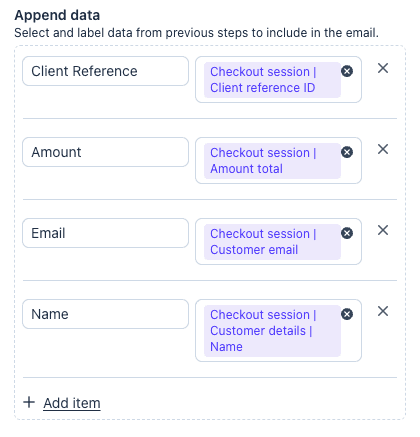
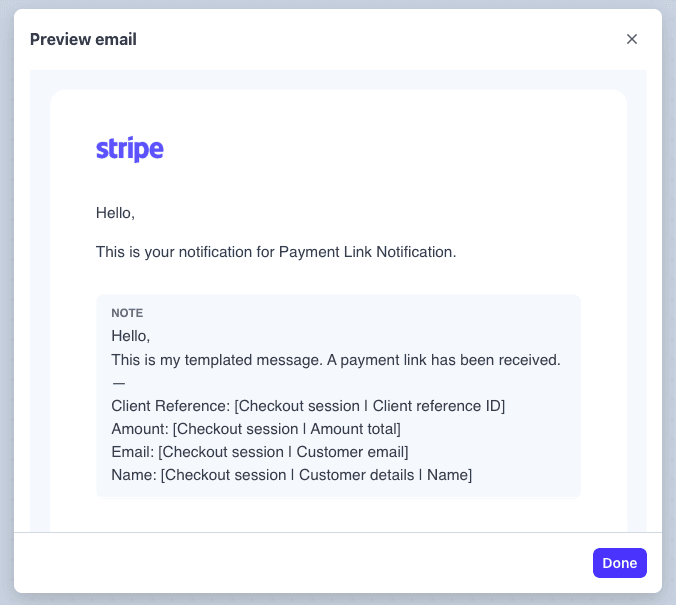
When we're happy with the selected fields, the "Preview" button in the side panel will allow us to see roughly what the email should look like (placeholder values for now).
5. Publish
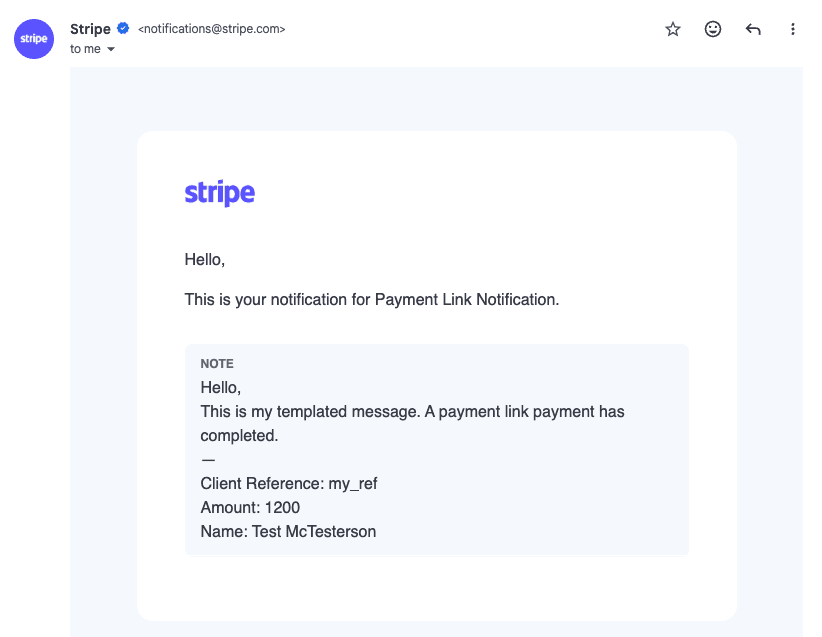
Once we're happy with the configuration, click "Publish" at the top of the page. The workflow is now live and will send an email notification every time a payment link with a client reference ID is completed.
If we want to refine the email content, head back to the workflow, click into the email action, and adjust the fields. Changes take effect immediately after publishing.
Why Not Use Something Like Zapier?
This was actually the first question our client asked: "Do we need Zapier for this?" It's a reasonable assumption, since Zapier and similar tools have been the go-to for this kind of Stripe automation for years.
The advantage of using Workflows instead is that everything stays within Stripe. There's no additional subscription, no third-party account to manage, no concerns about API rate limits or Zapier task quotas, and no risk of the integration breaking because an external service changed their API. It's native, it's free (included in the Stripe account), and it's maintained by Stripe as part of their core platform.
For more complex automations, external tools absolutely still have their place. But for targeted notifications like this, Workflows are the simpler, more reliable choice.
Wrapping Up
To recap the full setup:
- Create payment links as normal, but always add a Client Reference ID via the URL parameters option
- Create a workflow triggered by "Checkout Session is complete"
- Add a condition filtering for sessions where Client Reference ID is not empty
- Add an email action with the recipient(s) and relevant payment details
- Publish and you're done!
This approach gives us targeted visibility over our payment link payments without flooding our inbox with notifications for every transaction on the account. It's quick to set up, requires no code or external tools, and adapts easily - if our needs change, we can modify the workflow conditions, add more actions, or extend it to cover other payment flows.
Stripe Workflows are still a relatively new product, with new triggers, conditions, and actions being added regularly. If we've been relying on one-off scripts or third-party integrations for simple automations like this, it's worth checking whether Workflows can handle it natively now. Chances are, they can!