
Migrating Subscriptions to Stripe Billing: A Guide to the Migration Toolkit
Migrating billing systems sits right at the intersection of "absolutely critical" and "terrifyingly risky". Get it wrong and you can double-charge customers, lose subscription history, or quietly break revenue reporting. It's the kind of project that keeps finance teams up at night, and engineers triple-checking spreadsheets at 1am.
Stripe's Billing migration toolkit is designed to make this less painful. It's a no-code dashboard tool that lets you upload a CSV of existing subscriptions and have them created in Stripe, mirroring your current setup. No one-off migration scripts, or custom API tooling - just a spreadsheet and some careful attention to detail.
That said, there are a few sharp edges. This post walks through how the migration toolkit works, the fields you really need to understand, and the common mistakes that can lead to accidental double-billing.
Prerequisites: Customers And Prices Must Already Exist
Before you can migrate subscriptions, your customers need to exist in Stripe with valid payment methods attached. The migration toolkit creates subscriptions, not customers.
This typically happens one of two ways:
- Existing Stripe customers: If you've been using Stripe for payments but not subscriptions, your customers are likely already there.
- PAN data import: Stripe can import payment method tokens from your previous processor. This is a separate process you'll need to initiate with Stripe in advance.
Either way, each row in your migration CSV references a customer ID that must already exist. If it doesn't, that row will fail validation.
Equally, you'll need to have defined the products and prices to which customers will subscribe.
Once that is all set up, then head over to the Subscriptions section, click the "Migrations" tab then "+ Start new migration" to get the process started.

Time to get started!
The CSV format
After starting a new migration, a wizard will ask about the type of migration you're planning. Stripe provides template CSVs for common scenarios:
- Basic: Standard subscriptions with quantity, taxes, discounts, trials
- Multi-price items: Subscriptions with multiple products
- Ad-hoc pricing: Custom pricing for existing products
The fields that matter most are:
| Field | Required | Description |
|---|---|---|
customer | Yes | The Stripe customer ID (must already exist) |
price or items.0.price | Yes | The Stripe price ID for the subscription |
start_date | Yes | When the subscription activates in Stripe |
backdate_start_date | No | For backdating subscription history |
proration_behavior | No | Controls whether prorated charges are created |
billing_cycle_anchor | No | Determines the next date to bill the subscription for the customer. |
Most migration problems come down to how these fields interact, particularly the date fields and proration behaviour.
The example above references a specific price object in Stripe. If you're migrating a lot of bespoke pricing, it may be easier to define the prices as part of the migration. This can be done using the adhoc_items.* fields. For more on this approach, see the docs on ad-hoc pricing.
The Critical Timing Requirement
The start_date field determines when the subscription becomes active in Stripe. Stripe enforces a minimum lead time between upload and activation:
- Live mode: Currently around 24 hours
- Test mode: Typically shorter (often around an hour)
This is your safety net. The window between upload and activation gives you time to review the imported subscriptions in the Stripe dashboard. You can spot-check that pricing, quantities, and customers look correct. If anything doesn't look quite right, this is the time when you can cancel the entire migration, before real charges start coming through.
If you set start_date to next week, you have a week to review. If you set it to "as soon as possible", you've given yourself very little room to react if something goes wrong. There's rarely a good reason to rush this, so make sure to give yourself plenty of time to review.
Validation, Then Review
When you upload your CSV, Stripe validates the entire file before creating any subscriptions. This catches:
- Missing or malformed fields
- Invalid customer or price IDs
- Start dates that are too soon
- Invalid combinations of fields
Importantly, Stripe shows all validation errors at once, rather than failing row by row. That makes it much easier to fix everything in a single pass.
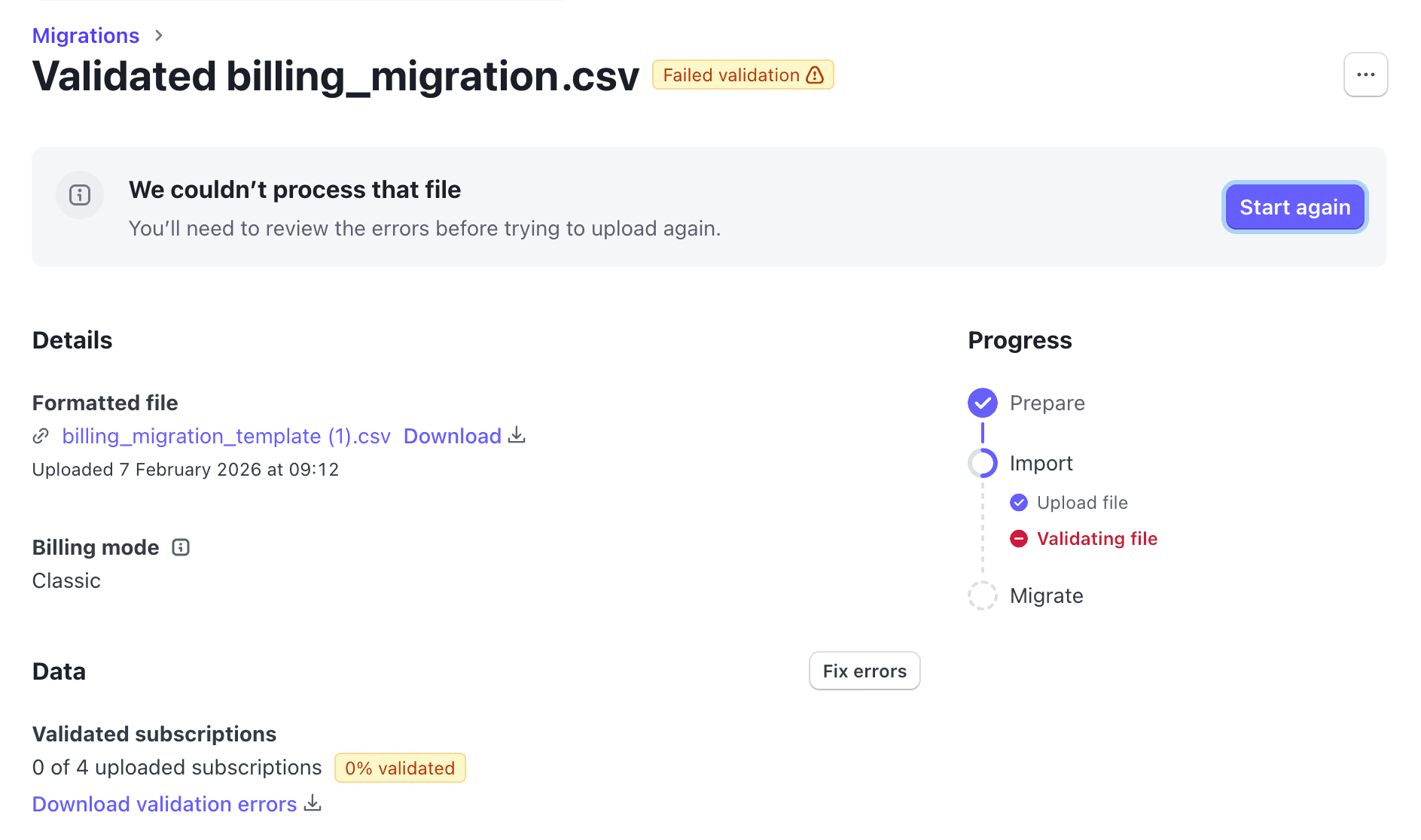
We have a problem
When there are errors, Stripe provide a downloadable CSV, which will explain line by line the failure for each entry.

Line-by-line problem detail
After correcting errors, the updated CSV can be added to the same migration. One UI quirk from the error screen show above is that clicking "Start again" will upload the CSV to the same migration attempt, while clicking "Fix errors" will lead you down a path which suggests creating a whole new migration. That's a small wrinkle that sometimes catches people out - generally speaking clicking "Start again" and keeping all attempts under the one migration keeps the history fairly clean in the account.
What happens if some of the entries are validating and some are not? In this case, the failure message will be changed to show how many of the total are good to go now. At this point the option is there to allow the valid entries to be processed, or to keep iterating until the full migration file is updated.

Partial validation successful
Once validation succeeds, the subscriptions are created in a scheduled state. They exist in Stripe, but they aren't active yet. The time taken for this validation depends on how many records you have. When testing in a sandbox, if you're using recordsets of under 100 subscriptions, in practice this validation happens ~instantly.

Successful scheduling!
Once the migration is successful, the migration screen will have a "View subscription schedules" button, which links to a list of the subscriptions scheduled on the account. Ahead of the schedules being activated, you can review the subscriptions in the dashboard. If they don't look quite right, they can be cancelled before going live (either individually, or cancelled as a batch if the start date is far enough in the future).
Backdating: The Most Common Source of Confusion
If a customer originally subscribed in January 2023 and you're migrating in 2026, you probably want Stripe to reflect that history. This is where backdate_start_date comes in, and it's the field most likely to cause some confusion, especially when reviewed alongside start_date.
The key distinction is:
start_date- When the subscription becomes active in Stripe and billing begins. Must be in the future.backdate_start_date- The historical date you want Stripe to record as the original subscription start. Can be in the past.
For example:
customer,items.0.price,start_date,backdate_start_date
cus_ABC123,price_XYZ789,1705753518,1658179441
In this case, the subscription activates on 15 February 2026, but Stripe records that the customer has been subscribed since January 2023. That affects reporting, analytics, and what customers see in the dashboard.
Do not try to set start_date to a past date - Stripe will reject it during validation.
Proration: The Danger Zone
This is where migrations most often go wrong, and customers get unexpected charges.
By default, Stripe's proration_behavior is set to create_prorations. If Stripe detects a mismatch between the billing cycle anchor and the start date, it will happily generate a prorated invoice. During a migration, that usually means billing a customer again for a period they've already paid for elsewhere.
In almost all migration scenarios, you want to explicitly disable this:
customer,items.0.price,start_date,backdate_start_date,proration_behavior
cus_ABC123,price_XYZ789,1705753518,1658179441,none
Setting proration_behavior to none tells Stripe: "This customer is paid up through their next billing date, just start billing them normally from then."
If you remember only one thing from this post, remember this!
Billing Cycle Anchors: Why They Matter
The billing_cycle_anchor controls when future invoices are generated. If this doesn't align with your existing billing dates, Stripe may try to "correct" the cycle. This is another easy way to trigger prorations or confusing first invoices.
When migrating, your goal is usually to mirror the existing cadence exactly, so that customers see no change in billing behaviour after the move.
For example, if we have a subscription where a user signed up to our existing system on Jan 1st 2026, should be billed on the first of the month, but we are migrating them on the 10th of February, our CSV would need to have:
| Field | Detail |
|---|---|
start_date | Timestamp for February 10th, e.g. 1770722529 |
backdate_start_date | Jan 1st, 2026 timestamp |
billing_cycle_anchor | March 1st, 2026 timestamp |
proration_behavior | none |
When you inspect this schedule in the Dashboard, you'll see that the first phase will start on the 10th, but the next billing event will take place on March 1st - no double-billing!
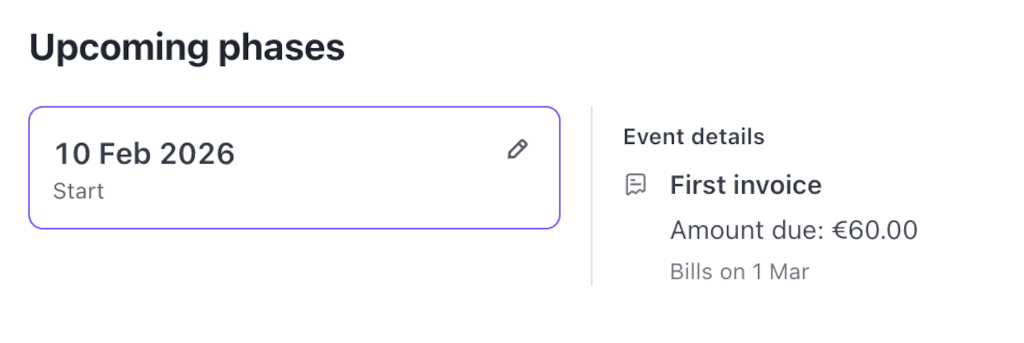
Billing scheduled successfully
A Typical Migration Workflow
Putting it all together:
- Export from your current system: Customer references, original start dates, plans, quantities.
- Ensure customers exist in Stripe: Either already present, or via a PAN import.
- Map data carefully: Match customers to Stripe customer IDs and plans to Stripe price IDs.
- Set dates deliberately:
start_datecomfortably in the future,backdate_start_dateoriginal subscription start (if needed),billing_cycle_anchoralign with existing billing. - Disable proration: Set
proration_behaviortononeunless you explicitly want charges. - Upload and validate: Fix all errors before proceeding.
- Review in the dashboard: Spot-check subscriptions while they're still scheduled.
- Monitor activation: Watch the first billing cycle for failures or unexpected invoices.
Common Mistakes to Avoid
- Setting
start_datetoo soon: Give yourself breathing room. There's no upside to rushing! - Forgetting to disable proration: This is the single most common cause of accidental charges.
- Confusing
start_dateandbackdate_start_date: One is about billing, the other is about history. - Missing payment methods: Subscriptions can be created without them, but invoices will then fail.
- Typos in price IDs: A single character off means a failed row.
Is the Migration Toolkit Worth Using?
For very small migrations with only a handful of subscriptions, creating them manually or via the API may be just as quick.
For anything larger, the migration toolkit is a significant time saver. Fender famously migrated 70,000 subscribers in a few hours using it. The validation step alone, catching all issues upfront rather than discovering them one API call at a time, is worth the learning curve.
The key is understanding the critical fields - start_date, backdate_start_date, billing_cycle_anchor, and proration_behavior - and using the review window properly.
Do that, and you can migrate subscriptions with confidence, without surprising customers or finance teams.