
More Than a Card Reader: Camera and Bluetooth on the Stripe S700
Most people who've seen a Stripe S700 know it as a card reader, and it's a good one. What fewer people know is that it's also an Android device, and with Stripe's Apps on Devices, we can install our own app on it. Our app runs the till, and hands over to Stripe whenever it's time to take a card.
That opens up the rest of the hardware: the S700 has a camera, and it has Bluetooth. Take a look at the demo video below, which shows both in action.
40 seconds of "I didn't know it could do that".
This post is the longer version: how the camera and Bluetooth are wired up, and the key things to know about the S700 before starting.
Everything below should apply equally to the S710 too: it's the same reader with cellular added.
The demo
The setting is a (fictional) luxury chocolatier. The operator adds a few things to the cart, and before charging, taps "Scan loyalty card". The customer holds up the loyalty card in the shop's app on their phone, the reader's camera picks up the QR code on it, and a 10% discount lands in the cart. The customer pays as normal, and the receipt comes out of a little Bluetooth printer beside the till, logo and all.
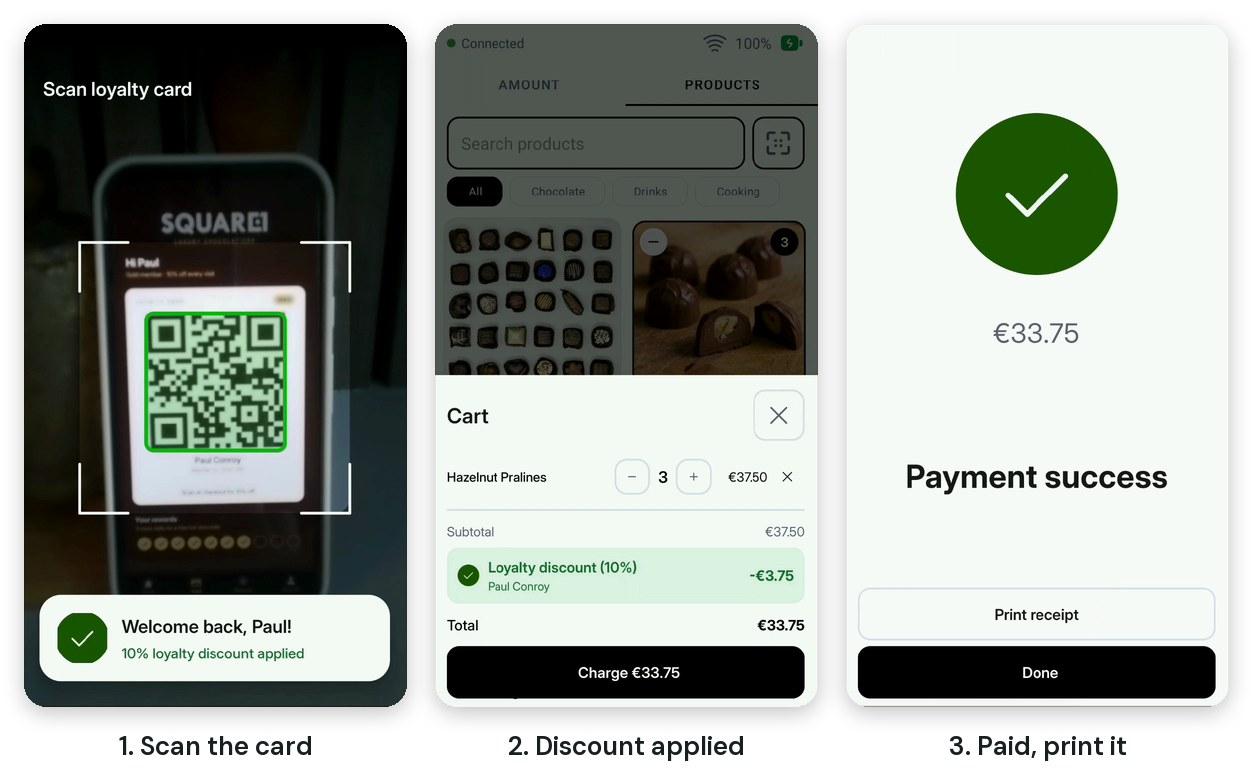
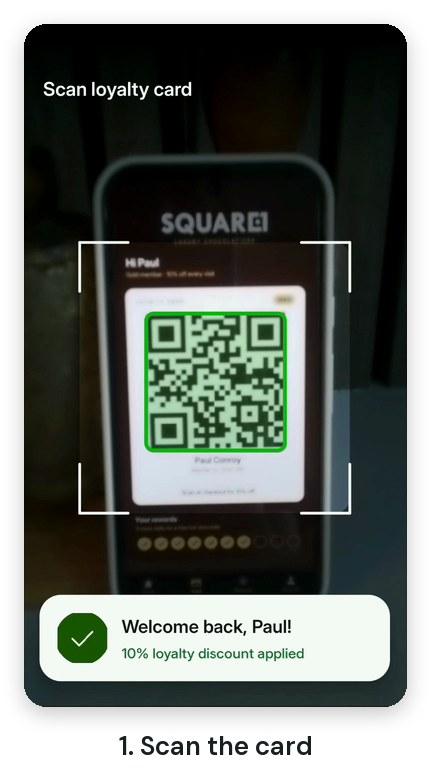
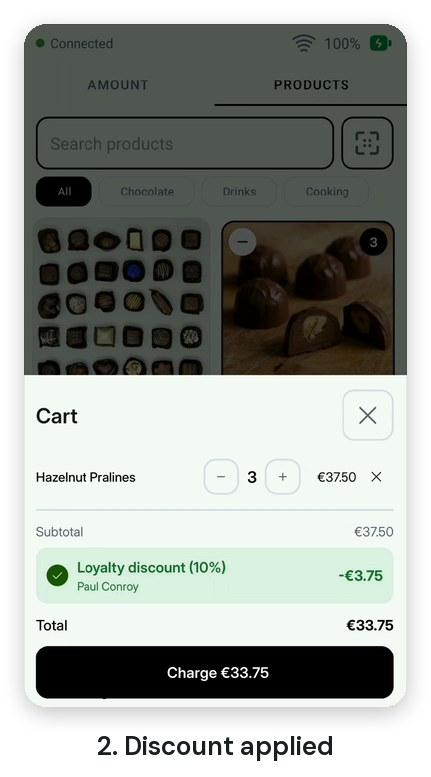
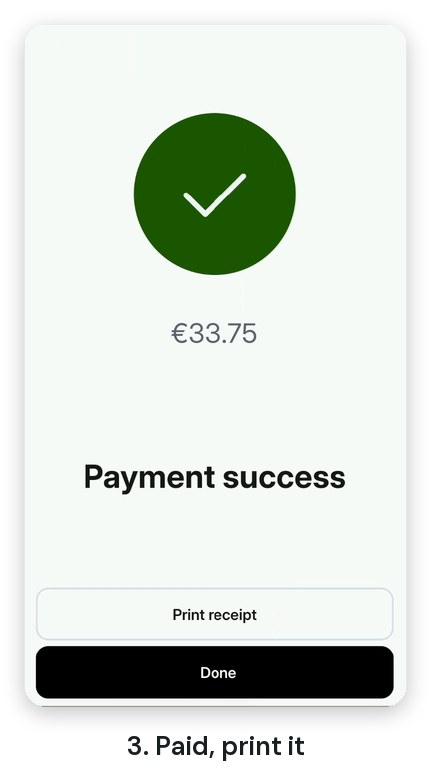
Scan, discount, pay. The camera and the printer are the bits the S700 doesn't do out of the box.
None of this needs anything from Stripe beyond the usual app submission. It's standard Android: CameraX and ML Kit for the camera, and plain Bluetooth Classic sockets for the printer. The S700 just has a few quirks worth knowing about before starting.
Our app, Stripe's reader
A quick bit of background on how an Apps on Devices app takes a payment, since everything else hangs off it. Stripe's sample app is the best starting point, and the setup is the same as any Terminal Android app: call TerminalApplicationDelegate.onCreate() from our Application, then Terminal.init() with a token provider which fetches connection tokens from our backend. The difference is the dependency: the Terminal SDK's Apps on Devices module, rather than the usual top-level one.
// app/build.gradle.kts
dependencies {
    // 5.3.0 is what this demo uses. 6.x is current, and needs compileSdk 35.
    implementation("com.stripe:stripeterminal-core:5.3.0")
    implementation("com.stripe:stripeterminal-appsondevices:5.3.0")
}
When the app starts, it connects to the reader it's running on. As of SDK 5, easyConnect rolls discovery and connection into one call. In Apps on Devices mode, discovery only ever finds one reader: the one we're running on.
val config = EasyConnectConfiguration.AppsOnDevicesEasyConnectionConfiguration(
    discoveryConfiguration =
        DiscoveryConfiguration.AppsOnDevicesDiscoveryConfiguration(),
    connectionConfiguration =
        ConnectionConfiguration.AppsOnDevicesConnectionConfiguration(
            appsOnDevicesListener,
        ),
)

Terminal.getInstance().easyConnect(config, object : ReaderCallback {
    override fun onSuccess(reader: Reader) { /* ready to take payments */ }
    override fun onFailure(e: TerminalException) { /* retry with backoff */ }
})
To take a payment, our backend creates the PaymentIntent and returns its client secret. The app fetches the PaymentIntent with that, then hands it to the SDK to process:
// Our backend creates the PaymentIntent (called from a coroutine)
val secret = api.createPaymentIntent(request).secret
val terminal = Terminal.getInstance()

terminal.retrievePaymentIntent(secret, object : PaymentIntentCallback {
    override fun onSuccess(paymentIntent: PaymentIntent) {
        terminal.processPaymentIntent(
            paymentIntent,
            CollectPaymentIntentConfiguration.Builder().build(),
            ConfirmPaymentIntentConfiguration.Builder().build(),
            object : PaymentIntentCallback {
                // Stripe's Reader app has the screen until one of these fires
                override fun onSuccess(paymentIntent: PaymentIntent) { /* paid */ }
                override fun onFailure(e: TerminalException) { /* declined... */ }
            },
        )
    }

    override fun onFailure(e: TerminalException) { /* couldn't fetch it */ }
})
When processPaymentIntent runs, Stripe's own Reader app takes over the screen, walks the customer through tapping or inserting their card, then hands control back to our app with the result. Card details never pass through our code at all, which is exactly what we want. Stripe's app review guidelines are mostly about protecting that boundary: don't build anything which lets someone type in a card number or PIN.
Everything before and after that handover - the products, the cart, scanning a loyalty card, printing a receipt - is ours to build however we like. On a DevKit, adb is enabled, so adb install puts a new build straight onto the reader. Production readers get the app through Stripe's Dashboard, once it's been submitted.
A note on the red text
If you develop on an S700 DevKit, you'll notice "Test Device Do Not Present Card Information" written in red across the screen. It jumps to a new spot every few seconds, which is deliberate: it moves so you can still see every part of your UI. It does make for slightly awkward screenshots and video, though!
Asking for the hardware
The S700 runs Android 10. That matters for permissions, because Android 12 reworked how Bluetooth permissions work, and our manifest needs to cover both worlds if we ever want the same app running on an emulator or a newer device:
<!-- Camera, for scanning loyalty cards -->
<uses-permission android:name="android.permission.CAMERA" />
<uses-feature android:name="android.hardware.camera.any" android:required="false" />

<!-- The Terminal SDK needs location, as does a Bluetooth scan to Android 11 -->
<uses-permission android:name="android.permission.ACCESS_FINE_LOCATION" />

<!-- Bluetooth up to Android 11: these two are what the S700 uses -->
<uses-permission android:name="android.permission.BLUETOOTH"
    android:maxSdkVersion="30" />
<uses-permission android:name="android.permission.BLUETOOTH_ADMIN"
    android:maxSdkVersion="30" />
<!-- ...and their Android 12+ replacements -->
<uses-permission android:name="android.permission.BLUETOOTH_CONNECT" />
<uses-permission android:name="android.permission.BLUETOOTH_SCAN" />
required="false" on the camera keeps the app installable on hardware without one, with the scan button hidden rather than the whole app refusing to install.
On Android 10, the camera and location are both runtime permissions. The app asks for location at startup, since the Terminal SDK won't initialise without it, and for the camera the first time the scanner opens. The two Bluetooth permissions are granted at install time below Android 12, but a Bluetooth scan still depends on location: without the location permission, and location services switched on, an Android 10 scan quietly finds nothing at all.
Scanning a loyalty card
The scanner is a full-screen dialog with a live camera preview. CameraX gives us the preview and a stream of frames, and ML Kit looks for QR codes in each frame.
One S700 quirk to know about before picking libraries: the reader has no Google Play Services. ML Kit's barcode scanner comes in two versions - one which downloads its model through Play Services, and a bundled one with the model inside the app. Only the bundled one works here:
dependencies {
    // 1.4.2 is what this demo uses
    implementation("androidx.camera:camera-camera2:1.4.2")
    implementation("androidx.camera:camera-lifecycle:1.4.2")
    implementation("androidx.camera:camera-view:1.4.2")

    // The bundled model, NOT play-services-mlkit-barcode-scanning. That one
    // waits for a model download which never comes, so every scan fails.
    implementation("com.google.mlkit:barcode-scanning:17.3.0")
}
The S700 has cameras front and back. The customer holds their phone up to the back of the reader while the operator watches the preview on the screen, so we use the back camera, with the front one as a fallback for other hardware.
Wiring the camera to ML Kit means binding two CameraX use cases to the dialog's lifecycle: a Preview for the operator to see, and an ImageAnalysis which hands each frame to ML Kit. We bind them as a group which shares the preview's ViewPort, so both crop to the same area of the sensor. That matters later, when we draw a box around the code.
private val scanner = BarcodeScanning.getClient(
    BarcodeScannerOptions.Builder()
        .setBarcodeFormats(Barcode.FORMAT_QR_CODE) // only look for what we need
        .build()
)

private fun bindCamera(provider: ProcessCameraProvider) {
    val camera = if (provider.hasCamera(CameraSelector.DEFAULT_BACK_CAMERA)) {
        CameraSelector.DEFAULT_BACK_CAMERA
    } else {
        CameraSelector.DEFAULT_FRONT_CAMERA
    }

    val preview = Preview.Builder().build().also {
        it.setSurfaceProvider(binding.previewView.surfaceProvider)
    }

    val analysis = ImageAnalysis.Builder()
        // If ML Kit is still busy, drop frames rather than queue them
        .setBackpressureStrategy(ImageAnalysis.STRATEGY_KEEP_ONLY_LATEST)
        .build()
        .also { it.setAnalyzer(cameraExecutor, ::analyzeFrame) }

    val viewPort = binding.previewView.viewPort ?: return // null until laid out
    val useCases = UseCaseGroup.Builder()
        .setViewPort(viewPort) // preview and analysis crop to the same area
        .addUseCase(preview)
        .addUseCase(analysis)
        .build()

    provider.unbindAll()
    provider.bindToLifecycle(viewLifecycleOwner, camera, useCases)
}

@OptIn(ExperimentalGetImage::class)
private fun analyzeFrame(imageProxy: ImageProxy) {
    val mediaImage = imageProxy.image ?: run { imageProxy.close(); return }
    val rotation = imageProxy.imageInfo.rotationDegrees
    val image = InputImage.fromMediaImage(mediaImage, rotation)

    scanner.process(image)
        .addOnSuccessListener { barcodes -> handleBarcodes(barcodes, imageProxy) }
        .addOnCompleteListener { imageProxy.close() } // or no more frames arrive
}
Remember to close() each frame. CameraX won't send a new frame until the last one is closed, so without it, the scanner only ever sees the first frame.
Don't trust the first frame
ML Kit is quick. It will happily decode a QR code from the first blurry frame where the card is half in view, and the obvious approach - act on the first code found - feels jumpy. Codes get picked up mid-swing, before the customer has even finished holding their phone up.
So the scanner waits for the same code to stay in view for a moment before committing. It's a small state machine, fed one result per frame:
class QrStabilityTracker(
    private val trackingMs: Long = 1200,
    private val settlingMs: Long = 800,
    private val clock: () -> Long = System::currentTimeMillis,
) {
    enum class State { NONE, TRACKING, SETTLING, LOCKED }

    private var lastValue: String? = null
    private var streakStartedAt = 0L

    fun feed(value: String?): State {
        if (value == null || value != lastValue) {
            // Lost it, or a different code: start the streak again
            lastValue = value
            streakStartedAt = clock()
            return if (value == null) State.NONE else State.TRACKING
        }

        val held = clock() - streakStartedAt
        return when {
            held >= trackingMs + settlingMs -> State.LOCKED
            held >= trackingMs -> State.SETTLING
            else -> State.TRACKING
        }
    }
}
The overlay draws an amber box while it's tracking, which turns green as it settles, and the code is only captured once it locks. As well as avoiding false starts, it turns out to be good feedback for the customer: the amber box says "I see it, hold still".
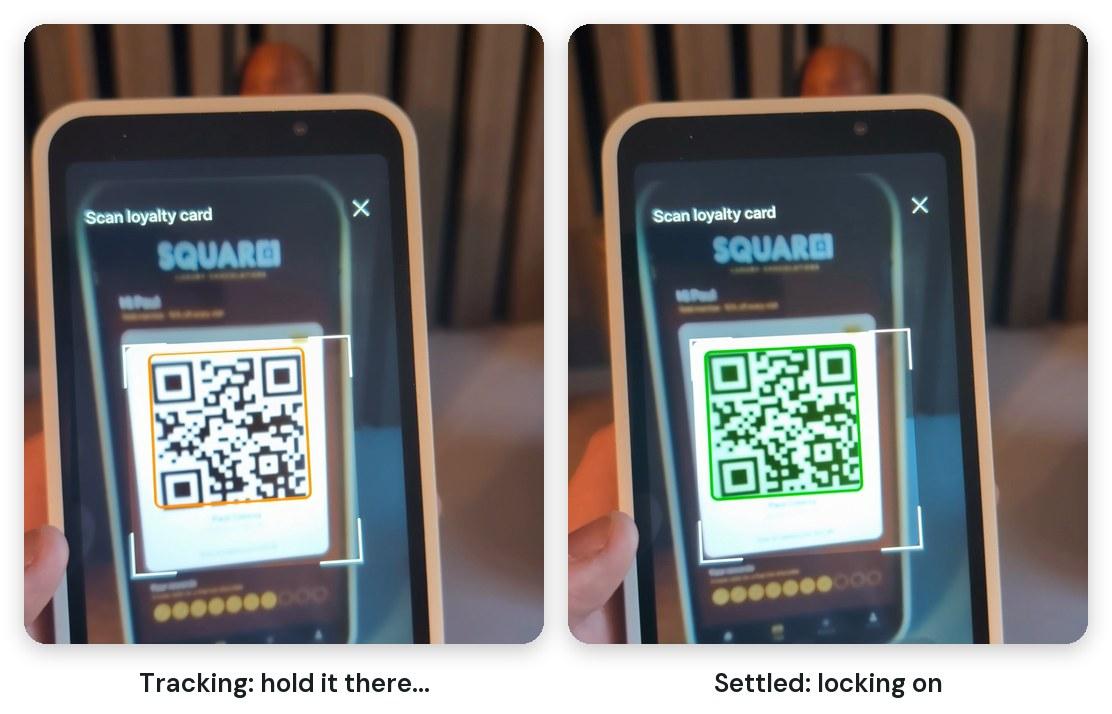
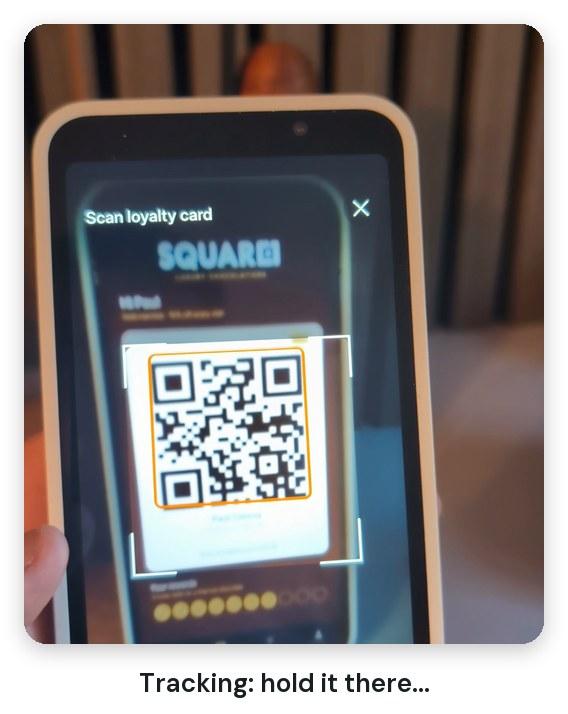
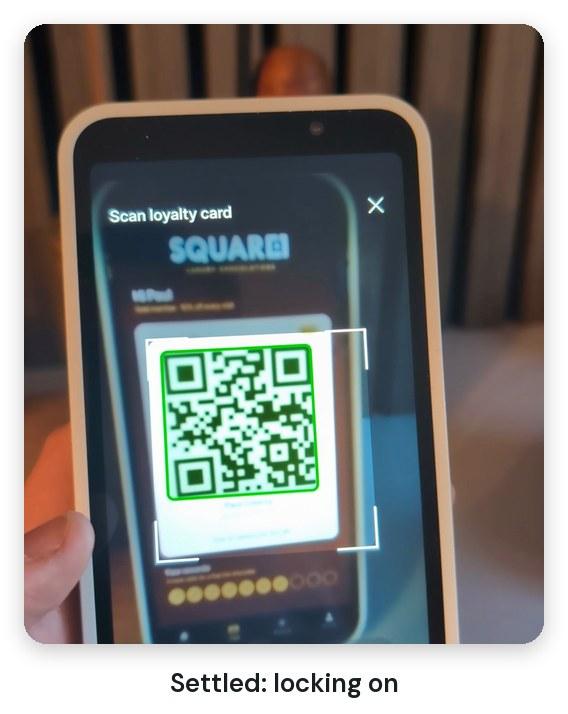
Amber while it's tracking, green once it's held steady, then it locks.
Drawing the box in the right place
ML Kit gives us a bounding box for the QR code, in the coordinates of the analysis frame. That frame isn't the same size or shape as the preview on screen, it may be rotated relative to it, and the preview is cropped to fill the screen. Our first attempt did the rotate, scale and crop by hand, and on the S700 the box sat noticeably below and to the right of the actual code.
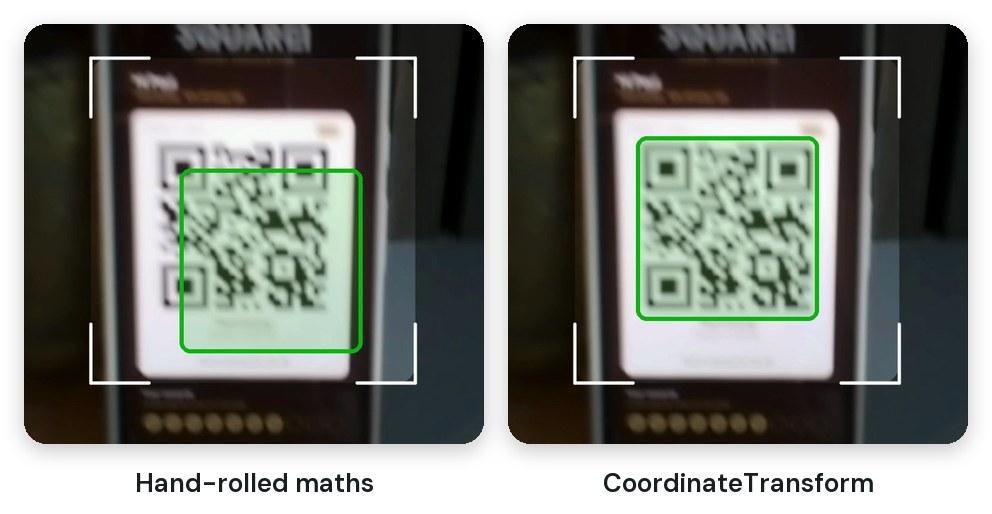
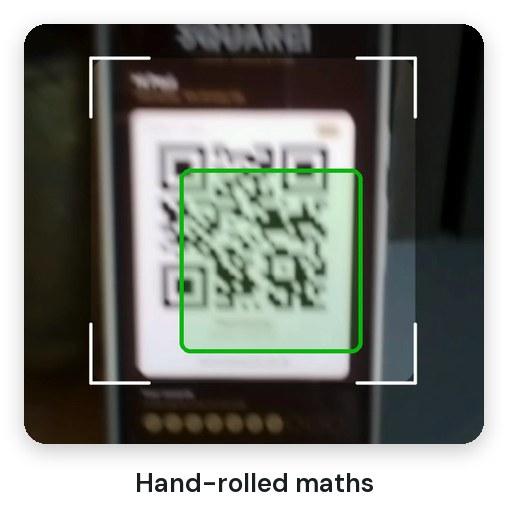
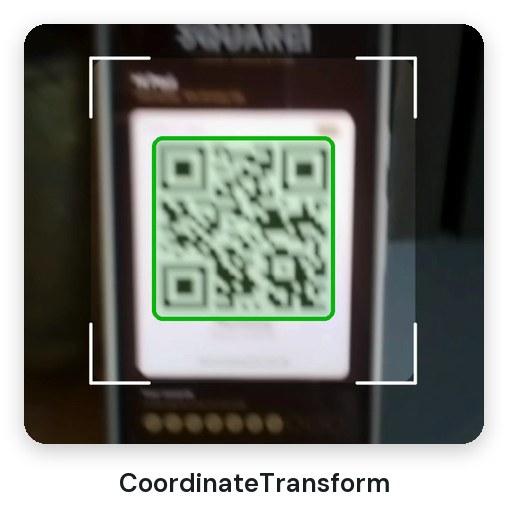
A reconstruction of the problem: where our own maths drew the box, and where CameraX puts it.
CameraX can do this mapping for us, and gets the crop and rotation right, as long as both use cases share a ViewPort like the ones above. In CameraX 1.4 these APIs are still marked @TransformExperimental, so they need an opt-in:
// Describe analysis frames the way ML Kit saw them: with rotation applied
@OptIn(TransformExperimental::class)
private val frameTransformFactory = ImageProxyTransformFactory().apply {
    isUsingRotationDegrees = true
}

@OptIn(TransformExperimental::class)
private fun mapToPreview(box: Rect, imageProxy: ImageProxy): RectF? {
    // Null until the preview has drawn its first frame
    val target = binding.previewView.outputTransform ?: return null
    val source = frameTransformFactory.getOutputTransform(imageProxy)

    return RectF(box).also { CoordinateTransform(source, target).mapRect(it) }
}
They fixed the offset on the S700, and it's much less code to own than doing the maths ourselves.
When the code locks, the dialog grabs the current preview as a bitmap, shows it in place of the live feed, and stops the camera. The green box stays on screen behind the "Checking loyalty card..." toast while we look the customer up, rather than the view jumping about or going black.
What's in the QR code?
For the demo, the loyalty card is a mock-up of a shop's app with a QR code on it, and the QR code contains the customer's Stripe customer ID:
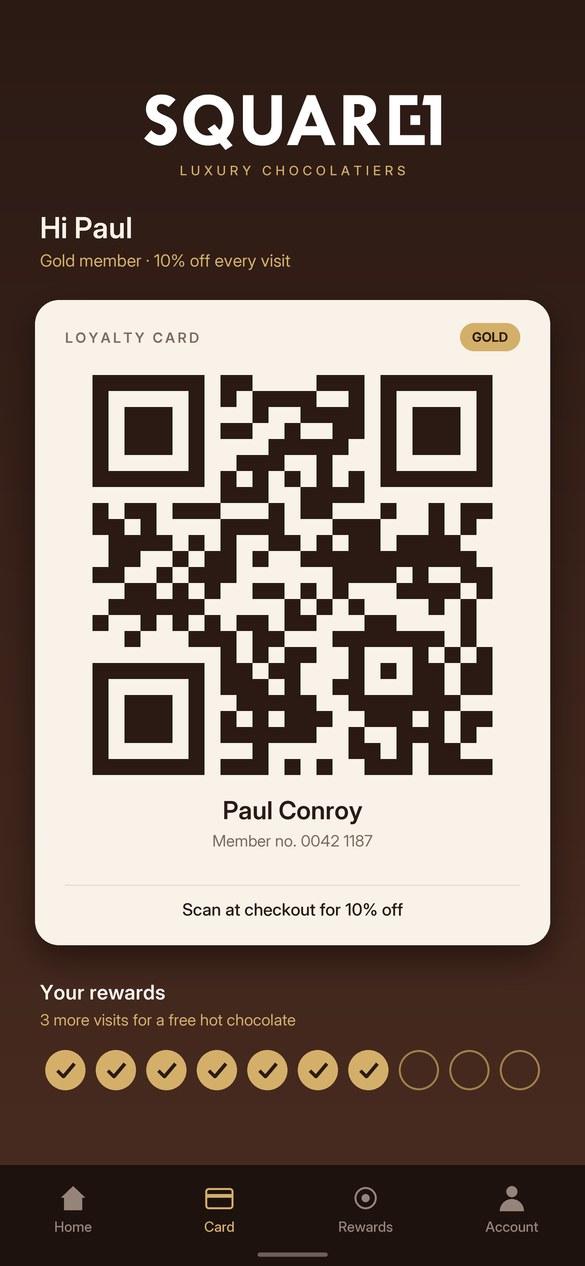
The loyalty card. The QR code is just a cus_ ID.
When the scanner locks, the app asks our backend about that customer. A match attaches the customer to the sale and takes 10% off the cart. When it's time to pay, the app sends our backend the discounted total, along with the line items, including the discount as a negative line:
{
  "amount": 3375,
  "currency": "eur",
  "customer_id": "cus_PQdQi3QUIj3W3W",
  "line_items": [
    {
      "id": "hazelnut-pralines",
      "name": "Hazelnut Pralines",
      "qty": 3,
      "amount": 3750
    },
    {
      "id": "loyalty-discount",
      "name": "Loyalty discount (10%)",
      "qty": 1,
      "amount": -375
    }
  ]
}
The backend creates the PaymentIntent for that amount, sets its customer, and stores each line item as a small JSON string in the PaymentIntent's metadata. Metadata values are capped at 500 characters, so one key per line keeps long product names safe. Later, the receipt reads those lines back to show exactly what was bought, and what was taken off.
A raw customer ID is fine for a demo, but I wouldn't put one in a real loyalty card. Anyone who can read the code can make another one, and the IDs reveal more about how the system works than they need to. A real system would put an opaque, signed token on the card, and only resolve it to a customer on the server.
Printing over Bluetooth
The S700 doesn't have a printer, but Bluetooth receipt printers are cheap, and nearly all of them speak the same language: ESC/POS, the point-of-sale flavour of Epson's ESC/P printer commands. We open a serial connection over Bluetooth, and write bytes at it.
Getting a connection to the printer takes a little more work on the S700.
The reader has no Bluetooth settings
On a phone, the operator would go into Settings, turn on Bluetooth, and pair with the printer. The S700's admin settings don't offer any of that, and the Bluetooth radio starts switched off. So our app has to do all of it itself.
Android 13 stopped apps from switching Bluetooth on themselves (on Android 12, it still works with BLUETOOTH_CONNECT). On the S700's Android 10, an app holding BLUETOOTH_ADMIN can do it, then wait for the radio to come up.
@Suppress("DEPRECATION")
suspend fun enableAdapter(context: Context, adapter: BluetoothAdapter): Boolean {
    if (adapter.isEnabled) return true
    // Android 13+: enable() always fails, so send them to the system dialog instead
    if (Build.VERSION.SDK_INT >= Build.VERSION_CODES.TIRAMISU) return false

    return withTimeoutOrNull(12_000) {
        callbackFlow {
            val receiver = object : BroadcastReceiver() {
                override fun onReceive(c: Context?, intent: Intent?) {
                    trySend(adapter.isEnabled)
                }
            }
            // Exported, because the Bluetooth system process sends this (see below)
            ContextCompat.registerReceiver(
                context,
                receiver,
                IntentFilter(BluetoothAdapter.ACTION_STATE_CHANGED),
                ContextCompat.RECEIVER_EXPORTED,
            )
            // Only ask once we're listening
            if (!adapter.enable()) close()
            trySend(adapter.isEnabled)
            awaitClose { context.unregisterReceiver(receiver) }
        }.firstOrNull { it }
    } == true
}
That receiver is registered as exported, which looks wrong but matters. These broadcasts come from the system's Bluetooth process, not our app. Below Android 13, ContextCompat implements RECEIVER_NOT_EXPORTED by guarding the receiver with a permission which only our own app holds, so the Bluetooth process can't deliver to it. The scan finds nothing, pairing never completes, and the only clue is a "Permission Denial" line in logcat.
Pairing has to happen in our app too. Our printer screen runs a Bluetooth scan, lists what it finds, and when the operator picks one, calls createBond() and listens for the result. There are three traps here: a bond may already be in progress (createBond() then returns false, even though pairing is about to succeed), it may complete before our receiver is listening, and BOND_NONE only means failure if it comes straight after BOND_BONDING. Inside a callbackFlow like the one above, that looks like this:
val receiver = object : BroadcastReceiver() {
    override fun onReceive(c: Context?, intent: Intent?) {
        if (intent == null) return
        val device: BluetoothDevice? =
            intent.getParcelableExtra(BluetoothDevice.EXTRA_DEVICE)
        if (device?.address != printer.address) return

        val state = intent.getIntExtra(BluetoothDevice.EXTRA_BOND_STATE, -1)
        val previous =
            intent.getIntExtra(BluetoothDevice.EXTRA_PREVIOUS_BOND_STATE, -1)
        when {
            state == BluetoothDevice.BOND_BONDED -> trySend(true)
            // NONE is only a failure straight after BONDING. Otherwise it's
            // just the state we started in.
            state == BluetoothDevice.BOND_NONE &&
                previous == BluetoothDevice.BOND_BONDING -> trySend(false)
        }
    }
}
ContextCompat.registerReceiver(
    context,
    receiver,
    IntentFilter(BluetoothDevice.ACTION_BOND_STATE_CHANGED),
    ContextCompat.RECEIVER_EXPORTED,
)

// Register first, then check, then ask
when (printer.bondState) {
    // Paired while we were registering
    BluetoothDevice.BOND_BONDED -> trySend(true)
    // Already pairing: createBond() would return false, so just wait
    BluetoothDevice.BOND_BONDING -> Unit
    else -> if (!printer.createBond()) trySend(false)
}
Plenty of cheap printers pair without a PIN at all. For ones which need one, answering the ACTION_PAIRING_REQUEST broadcast with BluetoothDevice.setPin() is the usual route.
Connecting to the printer
Receipt printers use Bluetooth Classic's Serial Port Profile (SPP), so we open an RFCOMM socket using SPP's well-known UUID. We cancel any running scan first, and fall back to an insecure socket if the printer refuses a secure one:
// The Serial Port Profile UUID, which nearly every ESC/POS printer advertises
val SPP_UUID: UUID = UUID.fromString("00001101-0000-1000-8000-00805F9B34FB")

// connect() blocks for seconds at a time: call this from Dispatchers.IO
fun openSocket(
    adapter: BluetoothAdapter,
    printer: BluetoothDevice,
): BluetoothSocket {
    // A running scan competes with the connection for the radio, and is the
    // classic cause of a connect timing out against a printer sitting right there
    adapter.cancelDiscovery()

    var lastError: Exception? = null
    for (secure in listOf(true, false)) {
        val socket = if (secure) {
            printer.createRfcommSocketToServiceRecord(SPP_UUID)
        } else {
            // Plenty of cheap printers refuse a secure connection outright
            printer.createInsecureRfcommSocketToServiceRecord(SPP_UUID)
        }
        try {
            socket.connect()
            return socket
        } catch (e: IOException) {
            lastError = e
            socket.close() // or it holds the channel, and the retry fails too
        }
    }
    throw IOException("Couldn't connect to the printer", lastError)
}
Many budget printers use a fixed PIN with no secure pairing, and refuse a secure socket outright, so the fallback is what gets them working. Trying the secure one first keeps things tidy for printers that do support it.
Small printers also have small buffers, so the app sends each print job in 512-byte pieces rather than one big write. Avoid closing the socket straight after the last write, as that can cut the end off a receipt that's still on its way to the printer. Calling flush() doesn't help there, as on a Bluetooth socket it doesn't wait for the printer. Our app keeps the connection open between receipts instead, which also saves reconnecting for every sale.
Speaking ESC/POS
An ESC/POS print job is plain text with control codes mixed in. Most of a receipt is text, so the commands are short:
val INIT = byteArrayOf(0x1B, 0x40)               // ESC @ - reset the printer
val ALIGN_CENTRE = byteArrayOf(0x1B, 0x61, 0x01) // ESC a 1
val BOLD_ON = byteArrayOf(0x1B, 0x45, 0x01)      // ESC E 1
val BOLD_OFF = byteArrayOf(0x1B, 0x45, 0x00)     // ESC E 0
At 384 dots wide, a standard 58mm printer fits 32 characters per line in its default font, so line items and totals are padded into columns to fit. There's no reliable way to know which character set a cheap printer supports, either: a "€" can print as almost anything. Currency symbols become ISO codes (so "EUR 22.50"), and accented letters lose their accents, which beats printing a random glyph.
For the logo, it helps to know that a thermal printer has no ink and no grey: each dot is either burnt black or left white. We draw the logo onto a white bitmap, force every pixel to pure black or white, and send it with GS v 0, the raster image command which nearly every cheap printer handles consistently:
// GS v 0: a four-byte header, the width in bytes and height in dots
// (little-endian), then one bit per dot, most significant bit first,
// each row padded to a whole byte
fun rasterImage(
    width: Int,
    height: Int,
    isBlack: (x: Int, y: Int) -> Boolean,
): ByteArray {
    require(width <= 384) { "Wider than the paper: it would crop the right edge" }
    val bytesPerRow = (width + 7) / 8
    val payload = ByteArray(bytesPerRow * height)

    for (y in 0 until height) {
        for (x in 0 until width) {
            if (isBlack(x, y)) {
                val i = y * bytesPerRow + x / 8
                payload[i] = (payload[i].toInt() or (0x80 shr (x % 8))).toByte()
            }
        }
    }

    return byteArrayOf(0x1D, 0x76, 0x30, 0x00) +
        byteArrayOf(
            (bytesPerRow and 0xFF).toByte(), (bytesPerRow shr 8).toByte(),
            (height and 0xFF).toByte(), (height shr 8).toByte(),
        ) +
        payload
}
The Square1 wordmark has thin strokes, and the anti-aliased edges around them are mid-grey, so a 50% cut-off eats them and prints a broken logo. Counting anything with a brightness below 160 (out of 255) as black keeps it solid. Our logo is capped at 120 dots tall, so it goes out as a single command. For anything taller, it's safer to send a few shorter bands, as some cheap printers struggle with one big image. And if you want to print photos rather than logos, dithering is the way to go, which I covered in the Smile Coffee receipt post.
Put it all together, and out comes a receipt:
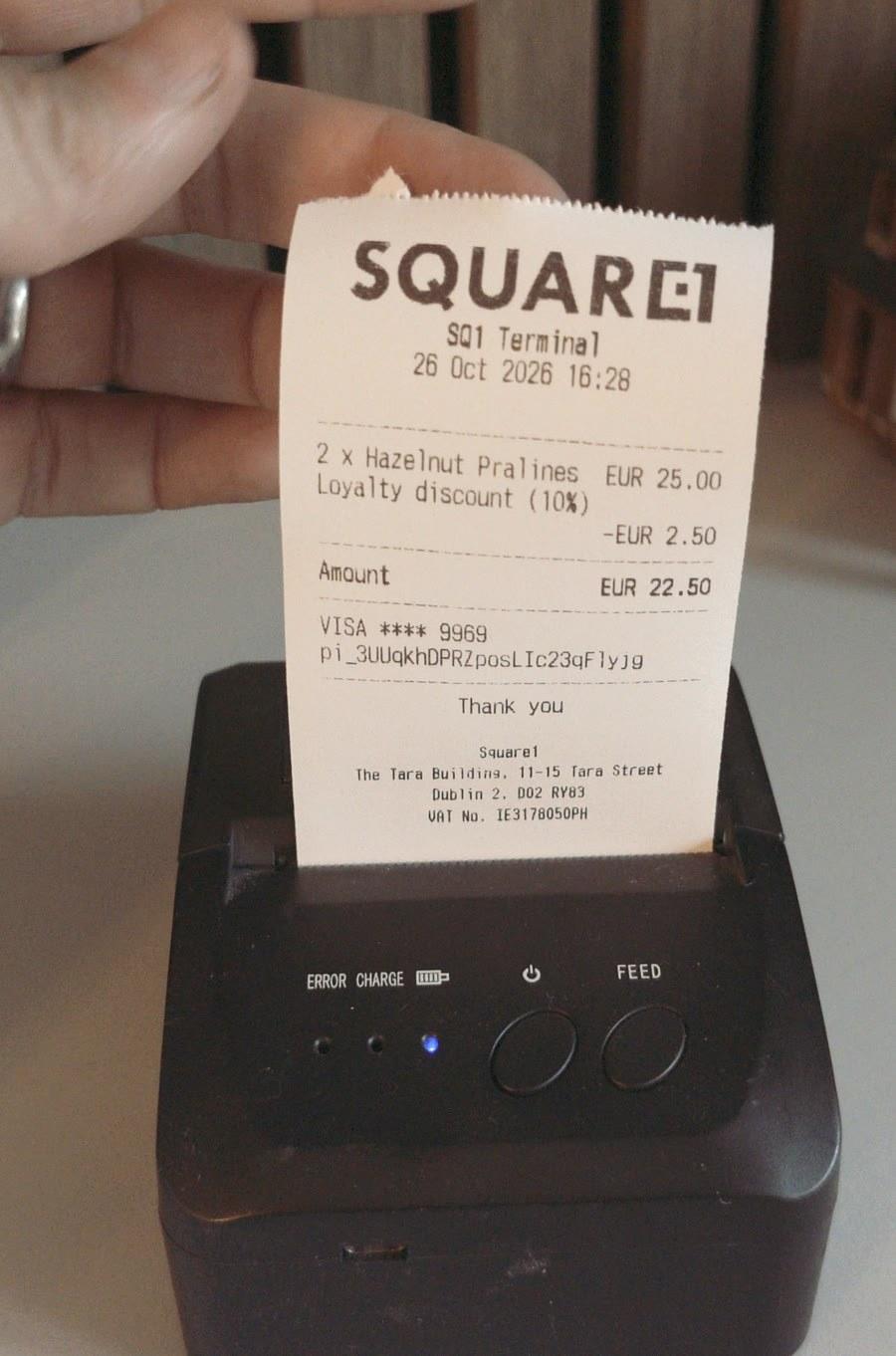
Logo, line items, the loyalty discount, and the PaymentIntent for reference.
Wrapping up
The camera and the printer turned out to be mostly standard Android. The surprises all came from the S700 being a locked-down device: no Play Services, no Bluetooth settings screen, and an older Android version than most of the docs assume. Once those are handled, the reader is a small Android computer which happens to be very good at taking payments.
Loyalty cards are only one use for that camera. The same scanner, pointed at a different QR code, would check event tickets at the door, with the payment terminal doubling as the scanner.
If you'd rather have the receipt printer built in, the Verifone V660p has one, and the Smile Coffee post above covers printing on it through Stripe's API. And if you're planning something like this for your own business, we build Stripe Terminal apps at Square1, and I'd love to hear what you've got in mind.